Know what you’re actually changing: iCloud Mail vs Apple ID
If you’re trying to “change your iCloud Mail password,” what you’re really changing is the password for your Apple Account (still commonly called your Apple ID). iCloud Mail doesn’t have its own separate login—your email address and password are the same credentials that sign you into iCloud, the App Store, FaceTime, and Find My.
That matters because a password change affects more than Mail. Your iPhone, iPad, Mac, and iCloud.com will usually ask you to sign in again, and any non-Apple mail apps (like Outlook or Gmail) may stop syncing until you update the saved password. If you use a third-party mail app and have two-factor authentication on, you may also need an app-specific password, which takes a few extra minutes to generate.
Before you start: avoid lockouts and lost access
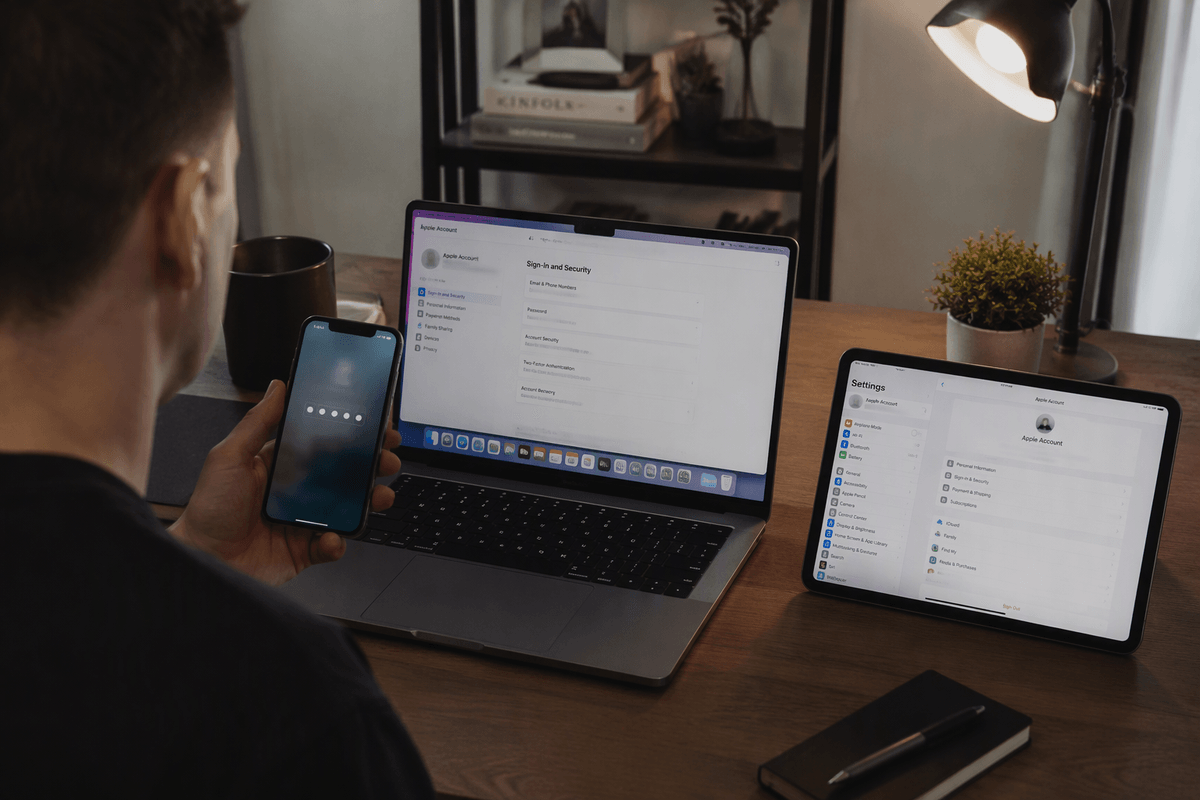
You’re usually changing this password because something feels off—maybe you got a security alert, or Mail keeps asking you to sign in. Before you do anything, make sure you have a trusted device handy (your iPhone, iPad, or Mac that’s already signed in) and that you can receive verification codes by text or phone call. If you recently changed your phone number, update it in your account first, or recovery can turn into a waiting period.
Also take two minutes to reduce surprise breakage: confirm you know the current password (or your device passcode), and expect other devices to prompt you to sign in again. If you check iCloud Mail in Outlook, Gmail, or another app, plan to update the saved password right after—or generate an app-specific password if you use two-factor authentication.
Change your Apple Account password on iPhone or iPad
You’ll do this from Settings, not the Mail app. On your iPhone or iPad, open Settings, tap your name at the top, then tap Sign-In & Security (on some versions it’s Password & Security). Tap Change Password. Your device will ask for your device passcode, then you’ll enter a new Apple Account password and confirm it. Use something long and unique—this one protects iCloud Mail and everything else tied to the account.
If you see an option to Sign out of other devices (wording varies), choose it if you suspect someone else has access, but expect more re-login prompts afterward. The most common practical snag is forgetting the new password right away, so save it in iCloud Keychain (or your password manager) before you leave this screen.
Change your password on Mac or on the web
If you’re at your Mac, you’ll change the same Apple Account password from System Settings. Open System Settings > [your name] > Sign-In & Security (or Password & Security on older macOS), then choose Change Password. You’ll be asked for your Mac login password, then you can set the new Apple Account password. If your Mac is managed by work or school, this menu may be restricted—use the web method instead.
On the web, sign in to account.apple.com, go to Sign-In and Security, then select Password to change it. Expect a verification code to a trusted device or phone number. Afterward, your Mac may prompt you to re-enter the new password for iCloud and for Keychain; do it when asked or you can end up with repeated sign-in pop-ups and Mail syncing delays.
What happens next: updating every device and email app
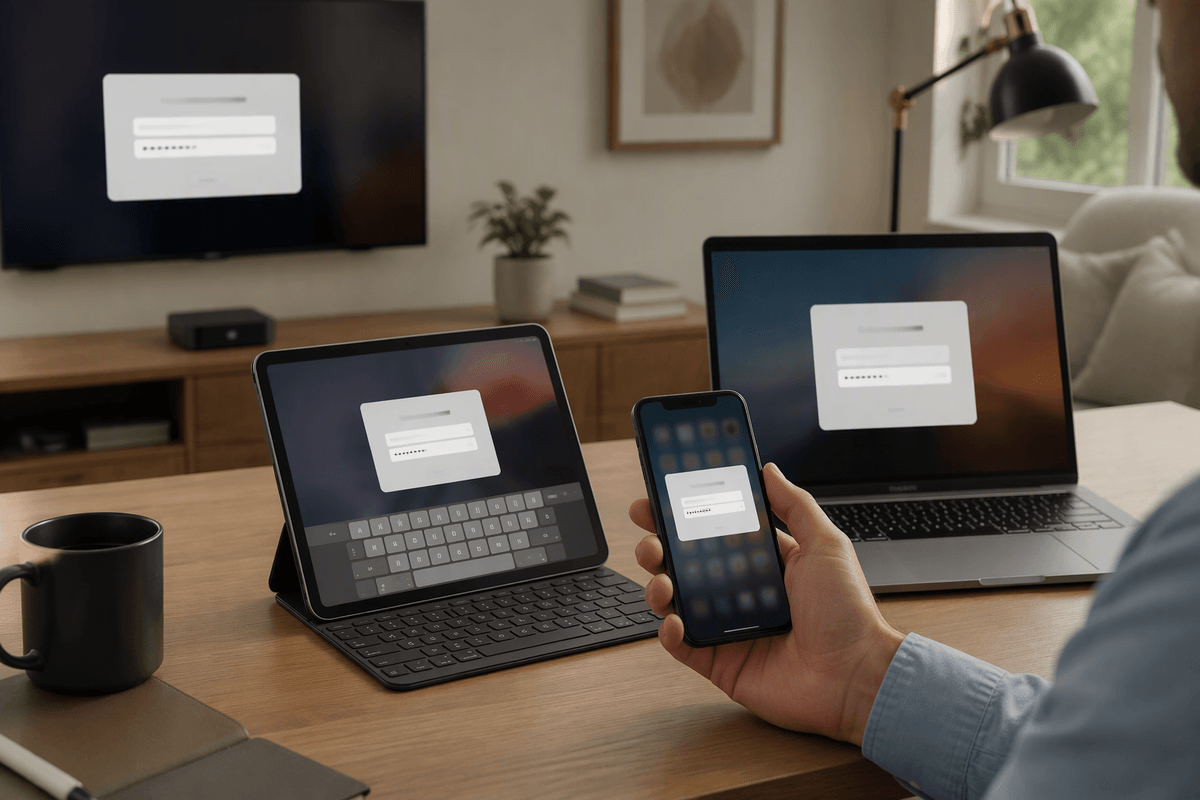
You’ll usually notice the change first as prompts: your iPhone, iPad, Mac, Apple TV, or even iCloud.com may ask you to sign in again with the new Apple Account password. Enter it when asked, and don’t ignore follow-up prompts for iCloud and Keychain—skipping those is a common reason Mail keeps looping on “Enter Password.” Give Mail a few minutes afterward; it may look stalled while iCloud re-authenticates in the background.
If you use iCloud Mail in a third-party app (Outlook, Gmail app, Thunderbird, or an older mail client), expect it to stop syncing until you update the stored password. With two-factor authentication enabled, many apps won’t accept your regular Apple Account password at all—you’ll need to generate an app-specific password at account.apple.com and paste that into the app’s password field. It’s a bit of a hassle, and you may have to repeat it on each device where that app is installed.
If you forgot it: quick recovery options that actually work
You’re usually in one of two situations: you can still unlock a trusted device, or you can’t. If you can unlock an iPhone/iPad/Mac that’s already signed in, that’s the fastest path. Go to Settings (or System Settings) > your name > Sign-In & Security > Change Password, and use the device passcode (or Mac login password) to set a new Apple Account password without needing the old one.
If you can’t access any trusted device, use account.apple.com if it will still let you sign in and verify. If it won’t, start account recovery at iforgot.apple.com. Be ready for it to take time—especially if you don’t have your trusted phone number anymore—because Apple may enforce a waiting period before you can reset. Once you regain access, expect iCloud Mail in Outlook/Gmail to break until you update the password or create an app-specific password.
Troubleshooting sign-in errors and mail not syncing
You’ll often see the same two problems after a password change: a loop that keeps asking for your Apple Account password, or Mail that looks “stuck” and won’t refresh. Start simple: confirm you’re using the new Apple Account password (not an old saved one) and that your device’s date/time is set automatically. On iPhone/iPad, go to Settings > your name and make sure iCloud is still signed in; if it isn’t, sign in there first, not inside the Mail app.
If Mail still won’t sync, toggle iCloud Mail off and back on: Settings > your name > iCloud > Mail. On Mac, check System Settings > your name > iCloud > iCloud Mail. For Outlook/Gmail/other apps, delete and re-add the iCloud account, or update the password—many times you must use an app-specific password (regular Apple Account passwords get rejected with 2FA). The practical downside: re-adding can trigger a full mailbox re-download, which may take hours on large accounts.
Finish with better security: 2FA, passkeys, and safer habits
Once you’re back in everywhere, take five minutes to harden the account so you’re not repeating this soon. Turn on two-factor authentication if it isn’t already, and confirm your trusted phone number(s) and recovery contacts are current—old numbers are a common reason resets turn into multi-day waits. If your devices offer passkeys for your Apple Account, use them: they reduce the risk of phishing because there’s no password to type into a fake prompt. Finally, clean up saved passwords (Keychain, browsers, Outlook) so nothing keeps retrying the old one, and remove any devices you don’t recognize from your account.