Live Text in plain English: what it does and why it’s handy
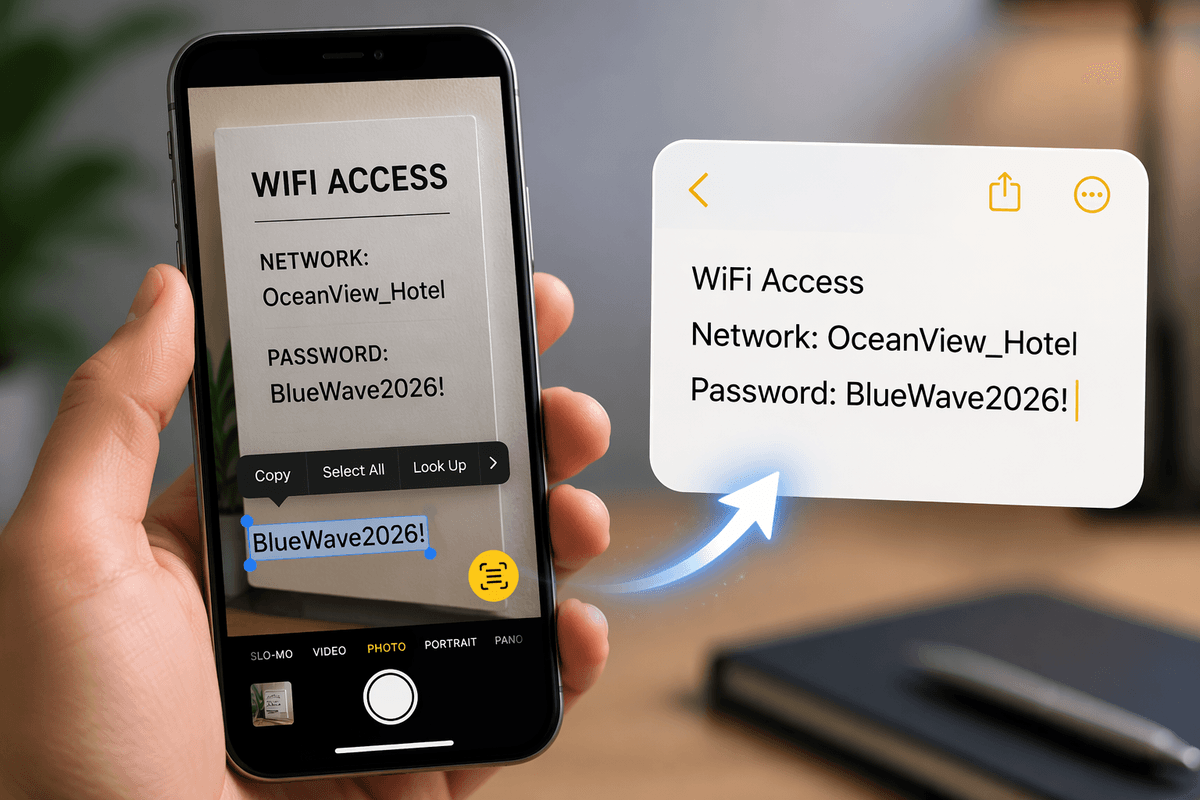
You’ve probably had a phone number, tracking code, or paragraph of notes stuck inside a screenshot or a photo of a sign. Live Text is Apple’s built-in feature that lets you tap and drag to select that text as if it were typed—then copy and paste it into Messages, Notes, email, or anywhere else. It’s also handy when you’re on the move: grab a Wi‑Fi password from a hotel placard, copy an address from a flyer, or pull a quote from a slide without retyping. It’s fast when it works, but lighting, blur, and tiny fonts can slow it down.
Before you start: supported devices, iOS versions, and languages
Before you go hunting for the little Live Text icon, make sure your hardware and software can actually do it. On iPhone, Live Text needs an iPhone XS or iPhone XR (or newer) running iOS 15 or later. On iPad, it requires iPadOS 15.1 or later and a newer model (for example: iPad mini 5th gen or later, iPad 8th gen or later, iPad Air 3rd gen or later, and modern iPad Pro models). If you want Live Text from a paused video frame, you’ll also need iOS 16 or iPadOS 16 or later.
Language support isn’t “every language ever.” Turn it on under Settings > General > Language & Region > Live Text, and expect better results in well-lit, sharp images. If you’re on an older device that can install the OS but doesn’t meet the hardware cutoff, the feature simply won’t appear.
Copy text from a photo in the Photos app
Open the photo in the Photos app and zoom in a bit if the text is small. Press and hold on a word until you see selection handles, then drag to highlight exactly what you need. From there, tap Copy and paste it into Notes, Messages, Mail, or anywhere a cursor appears. If you’re not getting a text selection at all, look for the Live Text button (it looks like a small rectangle with lines) and tap it to force “text mode,” then try the press-and-hold again. You can also tap once on obvious items like a phone number or email address—Photos often recognizes these as tappable actions.
Expect a few real-world limits: blurry shots, glare, curved labels, and tight handwriting can confuse it. If it keeps selecting the wrong line, zoom in, rotate the image, or crop so the text fills most of the frame.
Copy text from a paused video frame (yes, it works)
You’ll run into this with recorded lectures, how-to videos, and quick screen recordings: the only place the text exists is mid‑video. In Photos, open the video, scrub to the frame you want, then pause it. If you’re on iOS 16/iPadOS 16 or later, you can usually press and hold directly on the text in the paused frame to bring up selection handles—then drag to highlight and tap Copy. If it doesn’t “grab,” try tapping the Live Text icon (the same little rectangle-with-lines button used for photos) and attempt the press-and-hold again.
Two practical gotchas: if the video is low resolution or the text is moving/blurred, it may misread characters, and you’ll spend time correcting it after pasting.
Use Live Text outside Photos: Camera, Safari, and screenshots

You don’t have to save everything to Photos first. In the Camera app, point at the text and pause for a second; when Live Text kicks in, tap the Live Text icon, then select and copy, or tap obvious actions like a phone number. This is great for menus, shipping labels, and whiteboards, but it can lag in dim light or if you’re moving.
In Safari, Live Text can work on images inside a web page: press and hold on the text within the image, then drag to select and copy. For screenshots, open the screenshot preview right after you take it (bottom-left thumbnail), then press and hold on the text to copy before you even save it—fast, but tiny fonts may need a quick zoom.
More than copy/paste: translate, look up, call, and search
You’re not limited to copying. After you select text with Live Text, you’ll usually see quick actions in the pop-up menu depending on what iOS recognizes. Highlight a sentence in a foreign language and tap Translate to get an instant on-screen translation you can copy. Select a word or phrase and tap Look Up to pull definitions and related info without leaving the photo. If it detects a phone number, email, or street address, you can tap it to call, compose a message, start an email, or open Maps for directions.
For product codes, tracking numbers, or anything you just want to verify, use Search Web (or simply copy into Spotlight) to check it fast. The practical catch: recognition isn’t perfect, so scan for swapped characters like O/0 or I/1 before you act on it.
When Live Text won’t select text: quick fixes and common causes
You’ll know something’s off when you press and hold and nothing highlights—no handles, no Live Text icon. First, rule out the simple stuff: make sure you’re on iOS/iPadOS 15+ (and iPhone XS/XR or newer), and for video frames, iOS/iPadOS 16+. Then check that Live Text is enabled in Settings > General > Language & Region > Live Text.
When it should work but doesn’t, image quality is usually the culprit. Zoom in, rotate the image to level the text, or crop so the words take up most of the screen. If there’s glare, try a different photo or bump up exposure in Edit. For Camera, hold steadier and add light; Live Text often won’t lock on in dim rooms. One real constraint: if the font is tiny or the shot is soft, you may spend longer fixing misread characters than just retyping a short line.
Make it part of your routine: fastest ways to capture text anywhere
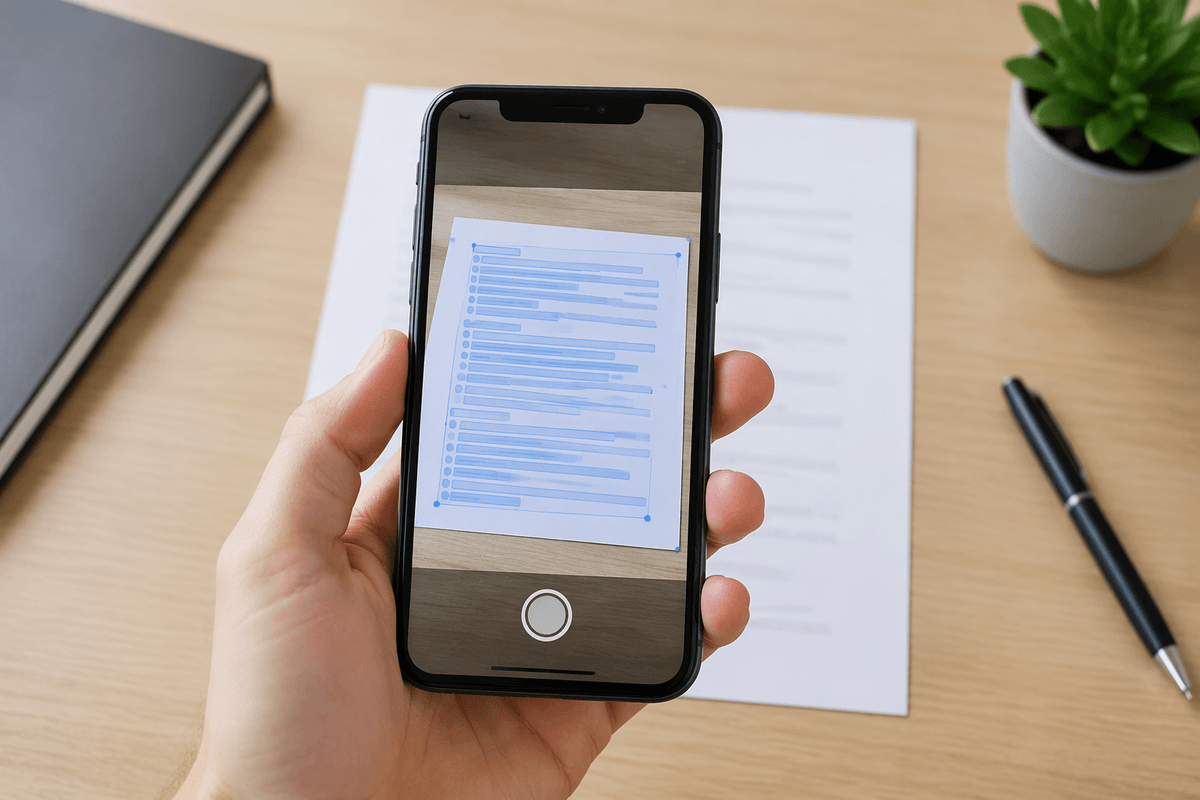
The fastest habit is to treat text like something you can “scan” on demand. If you need something physical (a form, sign, handout), open Camera, hold steady for a beat, tap the Live Text icon, then copy or trigger the action (call, email, Maps). If it’s on-screen, take a screenshot and use the thumbnail preview immediately—copy the text before you even save it. For longer chunks, paste into Notes first so you can quickly correct common misreads (O/0, I/1). The trade-off is time: bad lighting or low-resolution video frames can turn “instant” into a quick cleanup job.