Why printers can suddenly fail after a Windows update
You install a routine Windows update, and a printer that worked yesterday suddenly shows “offline,” refuses jobs, or spits out errors. That’s rarely random. Printing sits on top of drivers, the Windows print spooler, network discovery, and security rules that Windows updates can and do tighten. If your setup depends on an older vendor driver, a bundled utility, or a legacy protocol, a small change in permissions or driver handling can be enough to break the chain.
The frustrating part is that the failure can look like “the printer died” even when the hardware is fine. A driver can be replaced with a “safer” generic one, a print queue can be recreated with different defaults, or Windows can block a driver install that used to happen silently. Getting back to stable printing often means spending time identifying which link changed—something most home offices only discover when they’re trying to print an invoice five minutes before a deadline.
What’s changing in Windows printing behind the scenes
A lot of the “sudden” breakage comes from Windows steadily pushing printing toward tighter security and more standardized drivers. Recent Windows changes have focused on reducing how much third-party printer drivers can do in the background, limiting silent driver installs, and tightening how the Print Spooler accepts and stages drivers—especially when a printer is shared from another PC or a print server. That’s good for security, but it exposes setups that relied on old install routines, unsigned components, or vendor utilities that hook deeply into the spooler.
At the same time, Windows increasingly prefers class drivers and IPP-based printing where possible, and it may swap your queue to a different driver after an update. The trade-off is fewer special features (finisher options, label modes, accounting codes) unless the vendor has a modern, maintained driver package. For small offices, the practical risk is downtime plus time spent re-adding queues and reapplying defaults after updates.
Which printers and setups are most likely affected
The setups that get hit most often are the ones that rely on “special” paths instead of Windows’ more standard printing options. Older printers—especially models that haven’t had a vendor driver update in years—are higher risk, as are devices that only behave properly with a manufacturer package that installs extra utilities, port monitors, or status tools. You’ll also see more breakage when printing through a shared queue on another PC (home “print sharing”) or an aging Windows print server, because updates can tighten how drivers are installed and trusted across machines.
Network details matter too. Printers added with legacy discovery, older TCP/IP port settings, or vendor-specific protocols tend to be less resilient than IPP-based or “modern” class-driver installs. If you need advanced features like secure print, tray mapping, label stock modes, or accounting codes, you’re more exposed because a forced driver swap can remove those options even if basic printing still works.
Common symptoms and a fast way to narrow the cause
The first clues usually show up as “Printer offline,” jobs stuck in “Spooling,” or a queue that instantly flips to “Error” after you click Print. Sometimes the printer works from one PC but not another, or it prints a test page yet fails from a specific app. Feature losses are also a symptom: trays disappear, duplex/label settings reset, or secure-print options vanish after an update because the queue got switched to a generic/class driver.
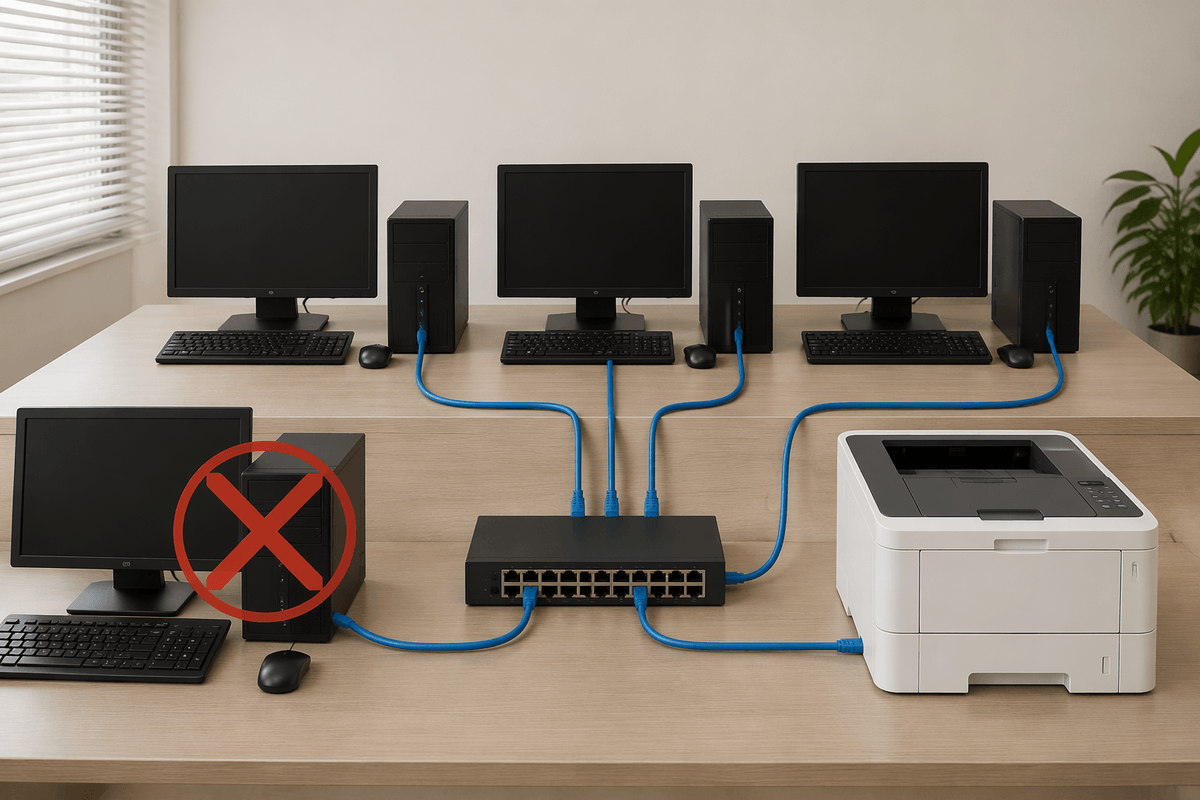
A fast way to narrow the cause is to isolate the path: print a Windows test page locally (USB if possible), then from the same PC over the network, then from a second PC. If USB works, focus on ports, IPP/TCP settings, and discovery; if only one PC fails, focus on its driver/queue; if all clients fail when printing through a shared PC, the shared host’s driver trust and spooler rules are likely the choke point. The constraint is time: you may need admin access and a reboot window to test cleanly.
Prepare now: drivers, firmware, and safer connection choices
You can lower the odds of a bad update day by locking down three basics: the driver source, the printer’s firmware, and the connection method. On each PC, check what driver you’re actually using (vendor package vs. Windows class driver) and download the newest supported driver directly from the manufacturer—not a third-party “driver updater.” If the printer is older and the vendor hasn’t maintained a Windows 11-ready package, plan to standardize on a class driver (accepting feature loss) or move the workload to a model with an actively maintained driver.
Update printer firmware on a calm week, not after a failure, because firmware updates can reset network settings or disable older protocols. For connections, prefer Ethernet or Wi‑Fi direct to the printer using a stable IP address, and add it via IPP when the device supports it. Avoid relying on one Windows PC “sharing” the printer to everyone else; that’s where driver trust changes and spooler hardening tend to show up first.
If it already broke: practical fixes that usually work
You notice it when jobs hang in “Spooling,” the queue flips to “Error,” or the printer goes “Offline” even though the panel looks normal. Start with the quickest resets that don’t change your setup: power-cycle the printer, reboot the PC, then restart the “Print Spooler” service and clear stuck jobs. If it’s a network printer, confirm the IP still matches (home routers can change it) and print a configuration page to see the current address.
If printing still fails, remove and re-add the printer, but be deliberate about the driver. Try the manufacturer’s latest package first; if that breaks or won’t install, switch to a Windows class driver or “Microsoft IPP Class Driver” and accept that advanced features may disappear. For shared printers, stop sharing from a random PC and connect clients directly to the printer by IP/IPP. The cost is time: re-adding queues also means redoing defaults like paper size, tray, duplex, and label settings.
When the best fix is a workaround—or replacement
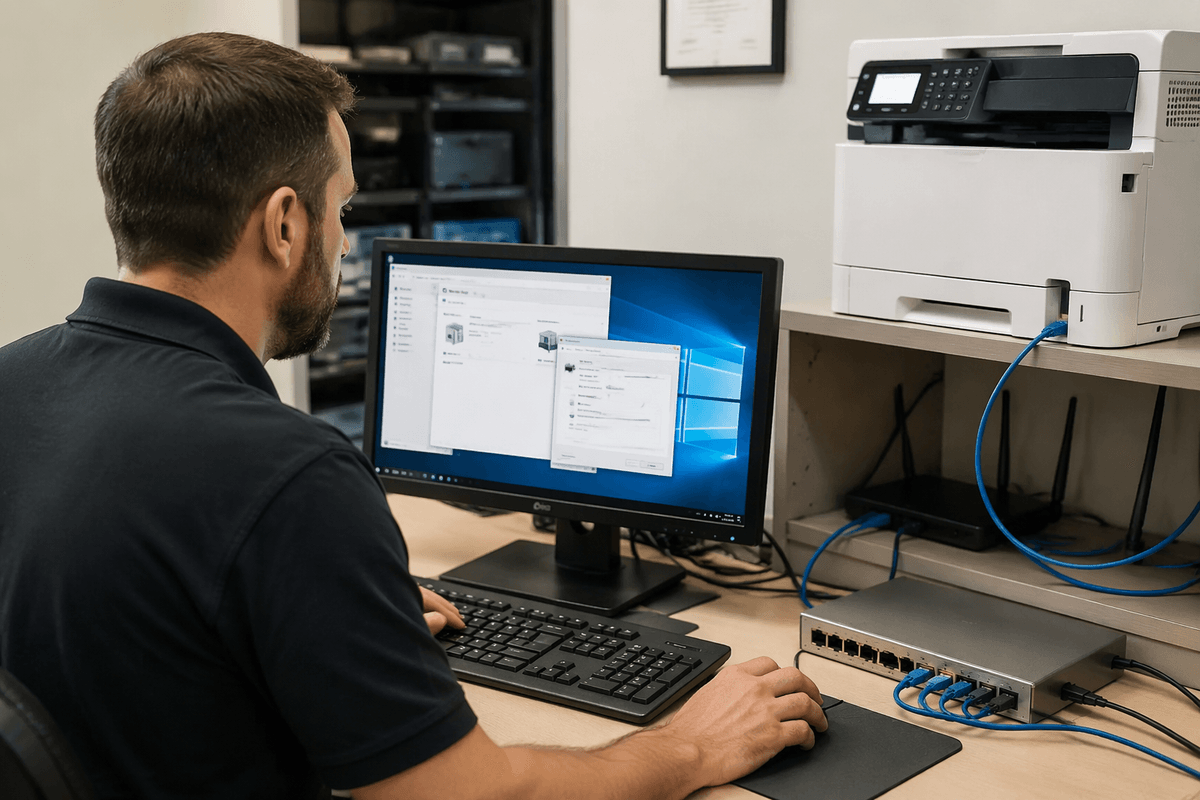
You can hit a point where you’ve “fixed” printing three times in a month, and the real issue is that your setup is living on borrowed time: an unmaintained vendor driver, a PC-shared queue, or a printer that only works through an old utility. In that case, the best move is often a workaround that reduces how much Windows has to trust. The most reliable is connecting each PC directly to the printer by IPP or Standard TCP/IP (not via another Windows PC), then using a class driver for basic output.
If you consistently need features the class driver can’t provide—label stock modes, tray mapping, secure print, accounting codes—replacement may be cheaper than ongoing downtime. Budget not just for hardware, but for rollout time: re-creating presets, retraining staff, and validating it from every app you rely on.
A realistic printing plan for the next Windows cycle
You don’t need to “freeze updates,” but you do need a plan that assumes printing can break on patch day. Keep one known-good driver package and firmware version documented per printer model, plus a note of the connection method (IPP vs. Standard TCP/IP) and the printer’s static IP. Before monthly updates, test printing from one “canary” PC and one key app, then let updates roll wider. Make direct-to-printer network queues the default, not PC-sharing. Have a fallback path ready (USB cable, second printer, or a PDF-to-email workflow) because the real cost is missed deadlines, not the fix itself.