What Kindle Unlimited is, and who it actually suits
Kindle Unlimited (KU) is Amazon’s monthly ebook subscription: you pay one recurring price and can borrow from a catalog marked “Kindle Unlimited,” then read in the Kindle app (phone/tablet), on a Kindle device, or in a browser. It’s not “all Kindle books,” and popular new releases are often outside the KU catalog, so it works best if you’re flexible and read widely—especially romance, thrillers, sci‑fi, or series where you’ll burn through multiple titles fast.
KU is a good fit when you finish several books a month and don’t want to buy each one. It’s a weaker value if you only read occasionally, prefer a specific bestseller list, or mostly listen to audiobooks. The main practical constraint: you can only keep a limited number of KU borrows at once, so you’ll return one to borrow another.
Check the basics first: eligibility, account, and devices
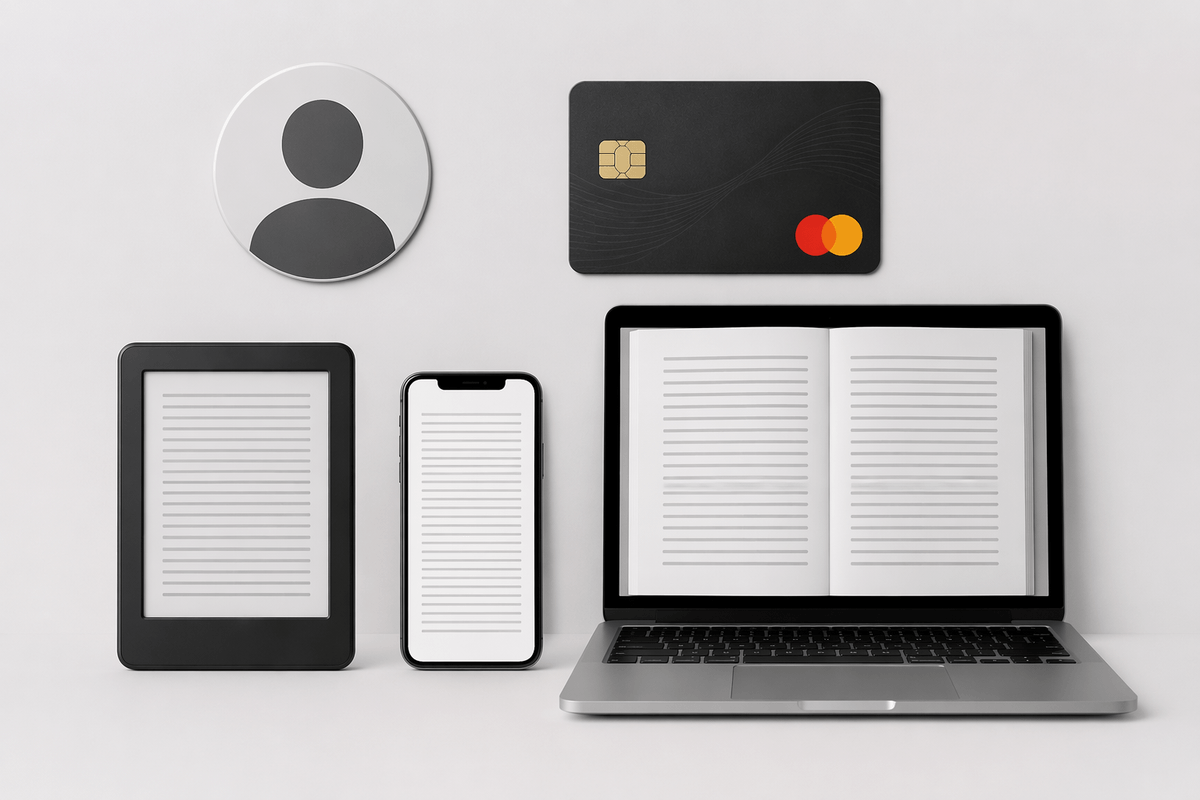
Before you hit “Start your free trial,” check three basics: your Amazon account, your payment method, and where you’ll read. Kindle Unlimited is tied to the Amazon account you subscribe with, so use the same login on your Kindle device and in the Kindle app on your phone/tablet. You’ll also need a valid payment method on file even for a free trial, because KU auto-renews at the end of the trial unless you cancel. If you share an Amazon Household, don’t assume KU automatically shares—sign up under the account that will actually borrow the books.
Device-wise, KU works on most Kindles, iOS/Android Kindle apps, and on a computer via the Kindle web reader, but the signup button isn’t always shown in every app screen. If you don’t see a trial offer, try checking on Amazon’s website while signed in; promos vary by account and timing, and sometimes only appear on the web checkout flow.
The simplest way to join Kindle Unlimited in minutes
Most people get the cleanest signup experience on Amazon’s website (mobile browser or computer) while logged into the exact account they’ll read on. Search for “Kindle Unlimited,” open the Kindle Unlimited membership page, and you’ll see the current offer for your account (free trial if available, or the monthly price). Tap the button to start, confirm the renewal details on the checkout screen, and note the renewal date shown before you submit—this is where you avoid “surprise” charges later.
After you join, pick any book labeled “Kindle Unlimited” and choose Read for Free (or Borrow). On a phone or tablet, it opens in the Kindle app; on a Kindle device, it downloads after you sync. If you’re signing up from an iPhone/iPad app and can’t find a join button, that’s normal—use a browser instead. The only real friction: you still need a payment method on file, and you’ll hit a borrow limit, so returning a finished book becomes part of the routine.
Free trials, promos, and bundles: getting the best price
You’ll usually see one of three offers at checkout: a free trial, a discounted intro period, or prepay options (like 6, 12, or 24 months). The easiest way to get the best price is to check the Kindle Unlimited membership page while signed in, because the “best” offer is often account-specific and can change depending on timing. If you don’t see a trial on your phone, try a desktop browser; sometimes the offer shows there even when the app doesn’t.
Before you confirm, slow down on the final screen and look for two details: the renewal date and the renewal price. KU almost always auto-renews unless you cancel, and the trial is still a commitment to remember. If you’re buying a Kindle, also check whether your device listing includes a KU bundle (often 3 months) and whether it requires activating on the same Amazon account you’ll read on. The trade-off with longer prepay plans is simple: lower effective monthly cost, but you’re paying upfront and refunds can be limited.
Start reading right away: borrowing, limits, and returns
You’ll know KU is “working” the moment you can open a KU title and see a Read for Free or Borrow button instead of a price. Tap it, then choose where to deliver it: your Kindle device (if it’s linked to the same Amazon account) or your Kindle app. If it doesn’t show up, force a sync—on a Kindle, sync from the menu; in the app, pull to refresh your library or switch to the Downloaded tab and back.
KU isn’t unlimited on your device at one time—you can only keep a set number of borrowed KU books at once (Amazon shows the current limit in your account). When you hit the cap, you return one to borrow the next. Returns are instant and safe: in the Kindle app or on your Kindle, long-press the cover (or use the “…” menu) and choose Return to Kindle Unlimited. Returning early doesn’t erase your membership; it just frees up a slot.
Use KU across Kindle, phone, and tablet without confusion
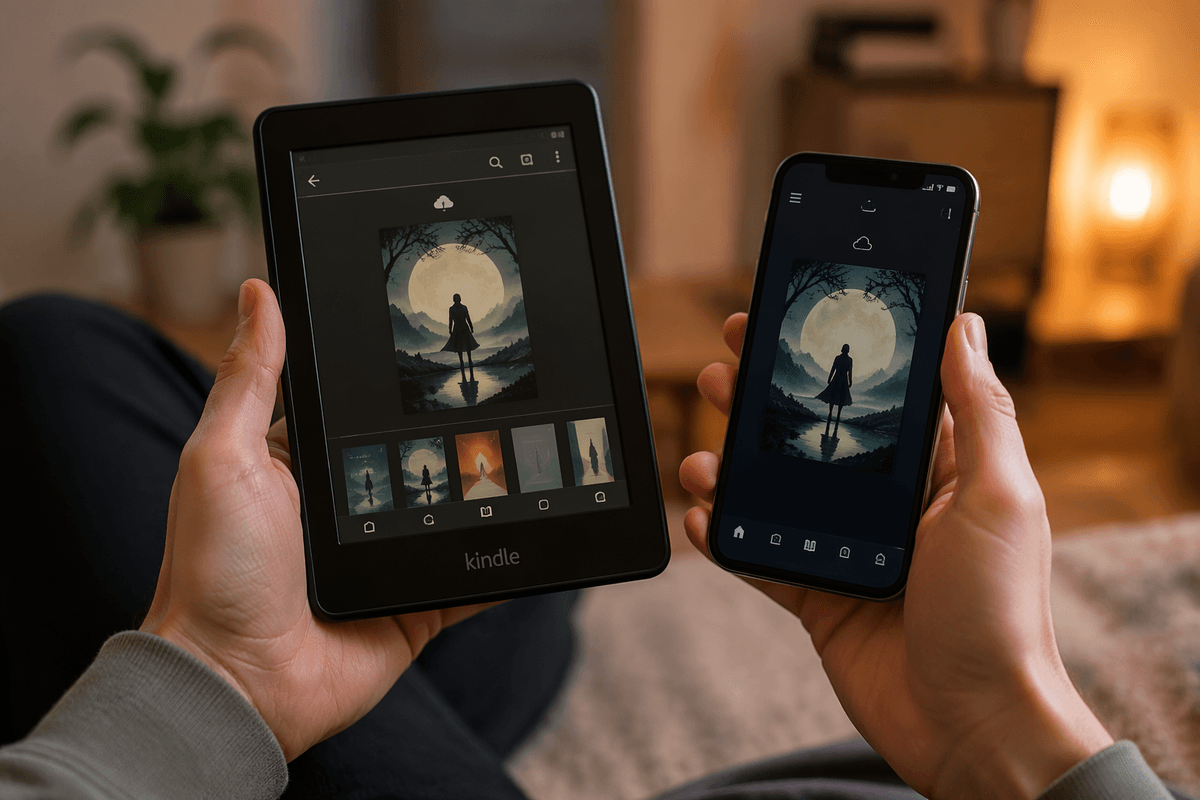
The easiest way to avoid device confusion is to treat your Amazon login as the “master switch.” Sign into the same Amazon account on your Kindle device and in the Kindle app on every phone or tablet you use. If one device is on a different account, KU books may show as “Buy” on that device even though you’re subscribed elsewhere.
Once you borrow a KU title, you can read it on multiple devices, but downloads are per device. On a Kindle, open your Library and tap the cover to download; on a phone/tablet, open the Kindle app, go to Library, then download for offline reading. If your book isn’t appearing, start with a quick sync (Kindle: Sync; app: pull to refresh). The practical limitation is storage: older Kindles and some phones fill up fast, so it’s normal to keep only a few books downloaded and stream the rest when you have Wi‑Fi.
Manage or cancel your membership before renewal surprises
The most common “surprise” with Kindle Unlimited is simply forgetting the renewal date. While you’re signed into Amazon on a browser, go to Account (or Accounts & Lists) > Memberships & Subscriptions > Kindle Unlimited to see your next billing date and the renewal price. If you started with a trial or intro deal, that page is where the post-promo price is shown clearly.
To stop charges, choose Cancel Kindle Unlimited Membership and follow the prompts. You’ll usually keep access until the end of the current billing period, so canceling right after you join is a valid “set it and forget it” move if you only want the trial. One practical catch: if you cancel, any borrowed KU titles stop working when the membership ends, so finish (or return) what you’ve downloaded before that date.