What’s different about the new Watch App Store
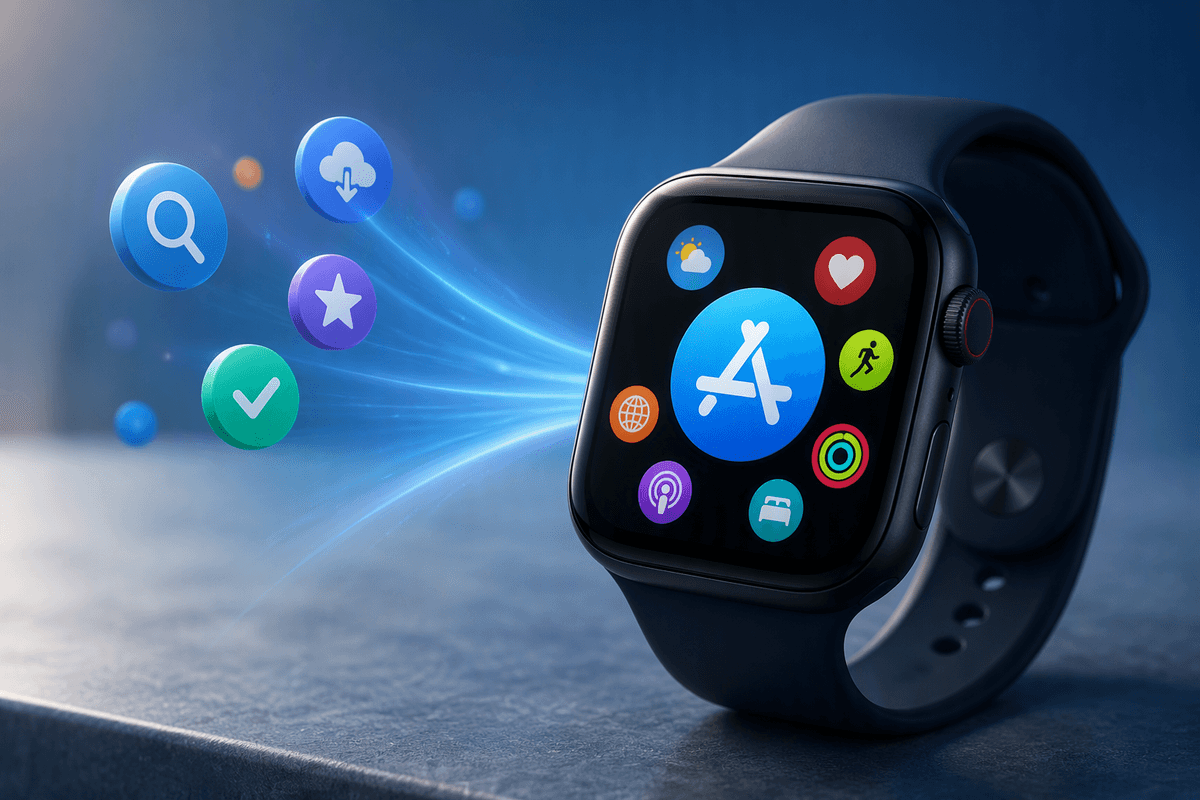
If you’ve updated watchOS, the biggest change is that the App Store now lives on your Apple Watch, not just on your iPhone. You can browse featured apps, search by name, read descriptions, and install apps directly from your wrist. Purchases and downloads still use your Apple ID, so you may be asked to confirm with your Apple Watch passcode or a quick sign-in prompt.
Not every app is truly “Watch-only.” Some installs bring a full Watch app, while others are mainly an iPhone app with a Watch companion. The Watch can also feel slower for shopping than the phone, and downloads depend on Wi‑Fi or cellular, plus your available storage and battery.
Find the App Store and confirm you’re signed in
You’ll usually find the App Store in your apps list: press the Digital Crown to go to the Home Screen, then look for the blue App Store icon. If you use the grid view and it’s hard to spot, turn the Crown to zoom in a bit, or switch to List View (press and hold the apps view, then choose List View) so you can scroll alphabetically. Another fast option is Siri: raise your wrist and say “Open App Store.”
Once it opens, check you’re signed in before you try to install anything. Scroll down to find your account button (often your profile picture or an “Account” entry). If you see prompts to sign in, follow them and be ready to confirm with your Apple Watch passcode. On some setups, it may hand off to your iPhone for Apple ID verification, which can take a minute if your phone isn’t nearby.
Browse and search without getting lost on a small screen
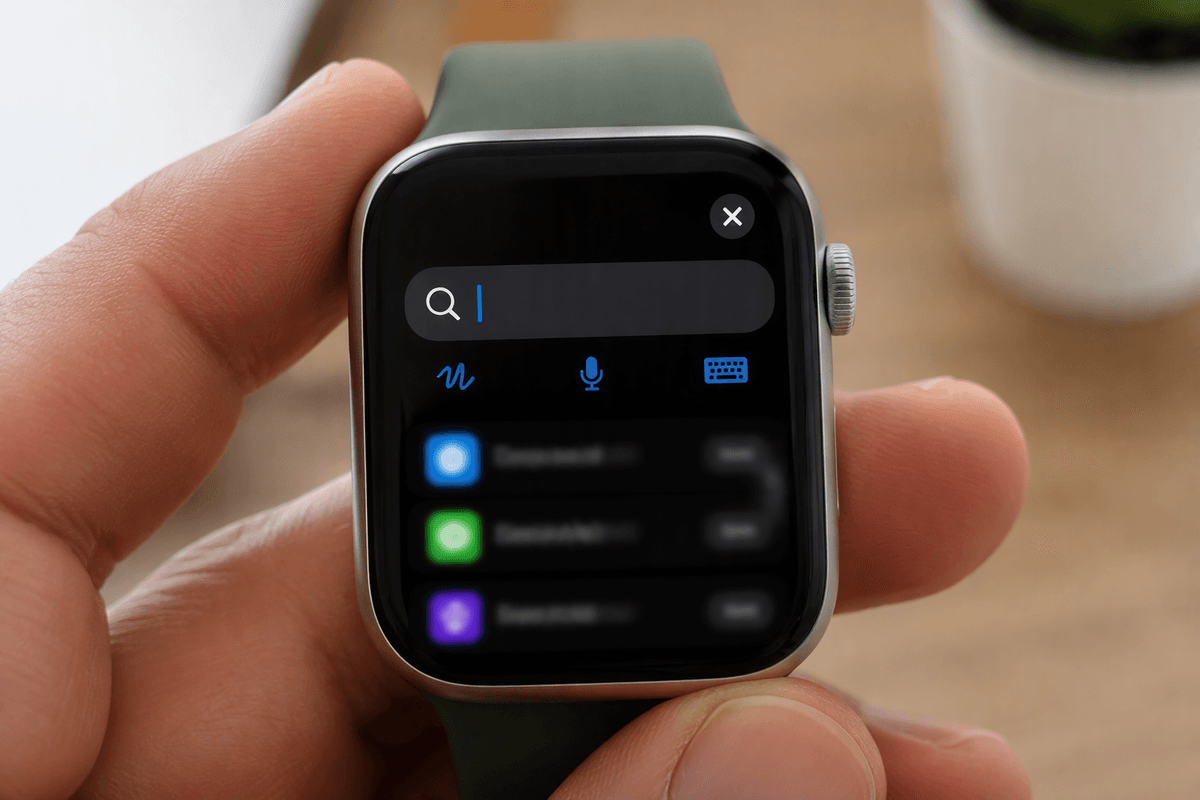
You’ll notice the Watch App Store is designed for quick decisions, not deep browsing. Start with Search when you already know the app name: tap the search field and choose Scribble, Dictation, or the tiny keyboard (if your model supports it). Saying the app name out loud is usually fastest, especially for longer names. If results look similar, open an app and check the screenshots and the “Information” area for what it actually does on Apple Watch.
When you’re browsing featured collections, keep your place by using the Back button at the top-left instead of pressing the Digital Crown, which drops you back to the Home Screen. If scrolling feels jumpy, slow your swipe and use the Digital Crown to move in smaller steps. The trade-off is time: browsing on the Watch takes longer, and app pages can take a few seconds to load on slower Wi‑Fi or low battery.
Install apps: choosing Watch-only vs iPhone companion
You’ll often see the difference between a Watch-only app and an iPhone companion app right on the app page. If the description talks about “paired iPhone” features, setup in the iPhone app, or syncing data from your phone, expect it to rely on the iPhone even if you can start the install on your Watch. A true Watch-first app usually shows clear Watch screenshots, mentions complications, and doesn’t require account setup in another app just to get started.
To install, open the app page and tap Get (or the price). Double-click the side button if Apple Pay is used, or confirm with your Apple Watch passcode when asked. If the button changes to a spinning progress ring, it’s downloading; you can leave the page and it will continue. The practical catch is that some companion apps won’t fully appear until the iPhone app is installed too, which can be frustrating if your phone isn’t nearby.
Control downloads, updates, and storage from your wrist
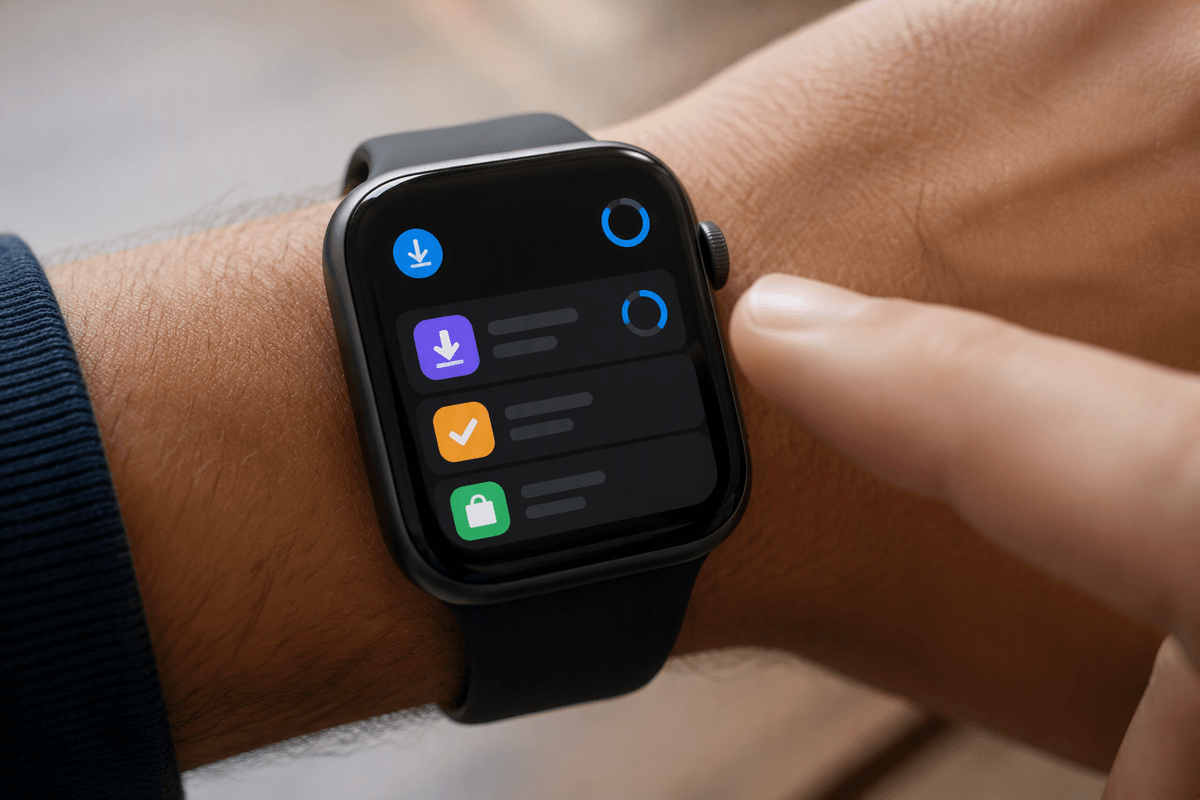
You’ll notice installs and updates are easiest to manage from your account area in the Watch App Store. Open the App Store, scroll down to your account button, then look for Purchased or Updates to see what’s available. If an update is waiting, you can start it from there, and you’ll usually be asked to confirm with your passcode. If a download seems slow, check the basics on your wrist first: low battery can delay downloads, and weak Wi‑Fi (or no cellular signal) can make the progress ring look stuck.
Storage is the other silent limiter. If installs fail or never finish, open the Settings app on your Watch, go to General > Storage, and see what’s taking up space. Deleting a rarely used app can free room quickly, but expect a trade-off: you may lose offline content inside that app and need time on Wi‑Fi to download it again later.
Make apps useful: complications, Smart Stack, and settings
You can install a great app and still feel like nothing changed until it shows up where you actually look. Start with complications: press and hold your watch face, tap Edit, then swipe to the Complications screen and choose the new app in a slot. If the app doesn’t appear, it may not offer complications, or it may need a quick first launch to finish setup.
Smart Stack is the other “make it visible” tool. Turn the Digital Crown to open the stack, then press and hold to edit and add a widget if the app supports one. Finally, open the app once and check its settings on the Watch (either inside the app or in Settings) for things like background refresh, notifications, and permissions. The constraint is battery: more frequent updates and more notifications can make your Watch feel busier and drain faster.
Fix common problems: missing apps, stuck installs, or errors
The most common “missing app” issue is simply that the install finished, but the app didn’t land where you expect. Press the Digital Crown and switch to List View to confirm it’s actually there, then try opening it once so it can complete setup. If the App Store shows a cloud icon instead of Open, it isn’t installed yet—tap the cloud and watch for the progress ring.
If a download looks stuck, start with the practical blockers: put the Watch on the charger (low battery can pause installs), make sure Wi‑Fi or cellular is working, and confirm you have storage (Settings > General > Storage). Then restart the Watch (press and hold the side button, then Power Off) and try again. If you keep seeing Apple ID prompts or “requires iPhone,” you may need your iPhone nearby to finish verification or install the companion app first.
A simple routine to keep your Watch apps under control
A good rhythm is to do a quick “app sweep” once a week. Open the App Store, go to your account area, and check Updates so you’re not surprised by a pile of downloads at the worst time. If an app feels slow or unreliable, open it once after updating so it can finish setup in the background. Once a month, check Settings > General > Storage and remove one or two apps you haven’t used lately. The cost is convenience: reinstalling later is easy, but re-downloading offline content can take time on Wi‑Fi.