When “app keeps stopping” is a symptom, not a diagnosis
You tap an app, it flashes open, then you get the dreaded “keeps stopping” message. It feels like the app is broken, but that message is really Android telling you only one thing: the app process crashed. The cause can live in a lot of places—inside the app’s code, in corrupted app data, in low storage or memory pressure, in overheating, or in a system component the app relies on (like WebView or Google Play services).
The practical move is to treat the crash like a symptom and look for the simplest “what changed?” clue: a recent update, a new permission you denied, a big photo/video download that filled storage, or a phone that’s been hot on a charger. Some fixes are quick and safe, others are disruptive (clearing data can sign you out), so it helps to narrow the likely cause before you start flipping switches.
Check the pattern first: one app, many apps, or the whole phone
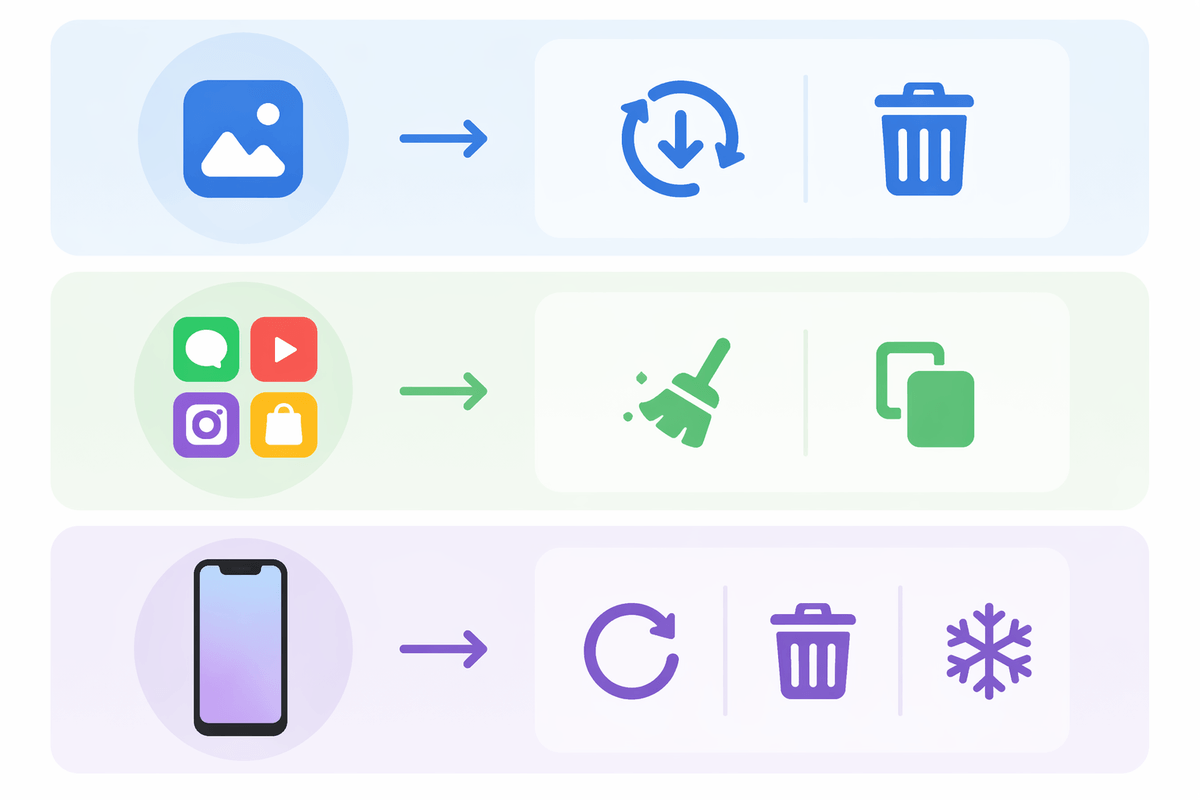
Start by noticing the pattern, because it tells you where to aim your effort. If only one app is crashing (say, your bank app), that usually points to something local: a bad update, corrupted app data, a blocked permission, or a login/session glitch. Your fastest path is to update that app, force stop it, clear cache, and try a reinstall before you touch bigger system settings.
If several unrelated apps are crashing—especially right after you unlock the phone—that’s more often a device-wide issue: low storage, memory pressure from too many background apps, or a broken dependency like Android System WebView or Google Play services. If the whole phone is acting unstable (random reboots, freezing, overheating), treat it like a system or hardware problem first: restart, free storage, let it cool down, and temporarily remove recently installed apps. The constraint is time: chasing app-by-app fixes wastes hours if the underlying problem is global.
Storage, memory, and heat: the quiet crash triggers
You’ll often see “keeps stopping” when the phone is simply running out of room to breathe. Low storage can break app writes, downloads, and updates, and it can also make Android’s background housekeeping more aggressive. If you’re under roughly 10–15% free storage, free space first: delete large videos, clear your Downloads folder, remove offline maps/music, and empty the trash in Photos. It’s boring, but it fixes more crashes than most “advanced” steps.
Memory pressure is the other quiet trigger. When RAM is tight, Android kills background processes, and some apps don’t recover cleanly—especially after switching between heavy apps like camera, games, and social feeds. Close unused apps, restart the device, and avoid running an update while multitasking. Heat makes both problems worse: a hot phone will throttle performance and can destabilize apps. If it’s warm from charging, gaming, or sitting in the sun, unplug it, remove the case, and let it cool before testing again.
App data and cache: quick resets that often work
You’ll often fix a stubborn crash by resetting what the app has cached. Go to Settings > Apps (or Apps & notifications) > pick the app > Storage & cache. Start with Force stop, then tap Clear cache. Cache is meant to be disposable, and if it gets corrupted (after an update, a flaky download, or a storage squeeze), the app can crash on launch. Reopen the app and test before you change anything else.
If the crash comes back immediately, Clear storage/Clear data is the stronger reset. This wipes the app’s local files and settings, so expect to be signed out and to lose offline downloads, saved drafts, or customized preferences. For apps that store data locally (notes, audio recorders, some games), confirm you have a login or a backup before you do it. After clearing data, launch once, sign in, and check permissions prompts carefully—denying one can recreate the same “keeps stopping” loop.
Updates and compatibility: when “fix” is actually “upgrade”
You’ll run into crashes that don’t respond to cache/data resets because the real issue is version mismatch: the app expects a newer Android component, or your phone is missing a bugfix the developer assumed you have. Open the Play Store, search the exact app, and update it (don’t rely on “everything up to date” banners). If you’re in the middle of a rollout, uninstalling and reinstalling can pull the newest build. Also check for app updates stuck “Pending”—a paused update can leave you with a half-working version.
Then look at the device side. Install system updates (Settings > System > System update) and reboot after they finish. On older devices, the opposite happens: an app update can start crashing because it dropped support for your Android version. If the Play Store says the app isn’t compatible, your “fix” may be using an older app version, switching to a lighter alternative, or upgrading the device. The cost is time and disruption: updates take storage, battery, and sometimes change settings you rely on.
System components that crash apps behind the scenes
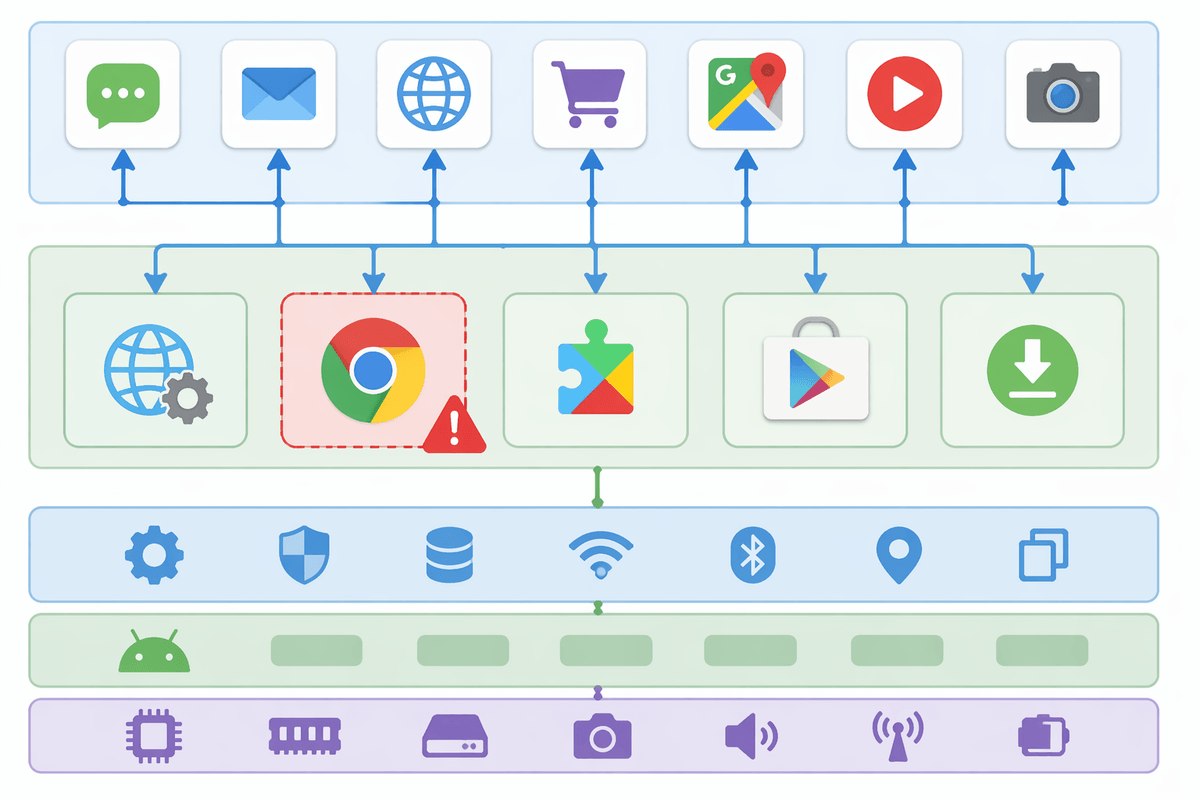
You’ll sometimes see multiple apps crash even after you’ve updated and cleared caches, because the thing failing isn’t the app—it’s a shared system piece the app calls into. The usual suspects are Android System WebView (and sometimes Chrome, which can provide WebView on many phones), Google Play services, the Play Store, and less obviously, the system download manager. When one of these is glitching, crashes show up in “random” apps that load web content, handle sign-in, process payments, open links, or restore data in the background.
Start with the least disruptive checks: restart, then update WebView/Chrome, Google Play services, and the Play Store from the Play Store. If an app crashes the moment it opens a login page or embedded browser screen, try clearing cache for Android System WebView, Chrome, Google Play services, and the Play Store (don’t clear data unless you’re ready for extra re-setup). If this started right after a component update, temporarily uninstalling updates for WebView/Chrome can stabilize things until a newer fix ships—just expect a little downtime and some reboots.
Last resorts: backup, reinstall, reset, or seek hardware clues
When the same crash survives updates, cache/data clears, and WebView/Play services fixes, it’s time to protect your data before you get more aggressive. For a single app, uninstall it, reboot, then reinstall from the Play Store; that reboot step matters because it clears out lingering processes and bad state. Before you wipe anything bigger, confirm your backups: Google Photos for pictures, Google Drive/device backup for settings and app lists, and any in-app sync (notes, authenticator apps, messaging). A factory reset can work, but it’s a full afternoon if you have lots of accounts, 2FA, and offline files.
If problems persist even after a reset, look for hardware clues: crashes during charging, random reboots, swelling battery, heat with light use, storage errors, or apps failing to install/update. Booting into Safe Mode is a quick divider—if things stabilize there, a third-party app is still the likely trigger; if not, you’re looking at a deeper system fault or failing storage/battery that may justify repair or replacement.
A simple crash-fixing order you can reuse every time
When an app keeps stopping, run the same order each time: restart the phone, then check free storage (aim for 10–15% free) and let it cool if it’s warm. Update the crashing app, then update Android and reboot. Force stop the app, clear cache, test, then clear data only if you can sign back in and won’t lose local-only files. If multiple apps crash, update Android System WebView/Chrome, Google Play services, and the Play Store, and clear their caches. If it still persists: uninstall/reinstall, try Safe Mode, then consider a factory reset or hardware repair.