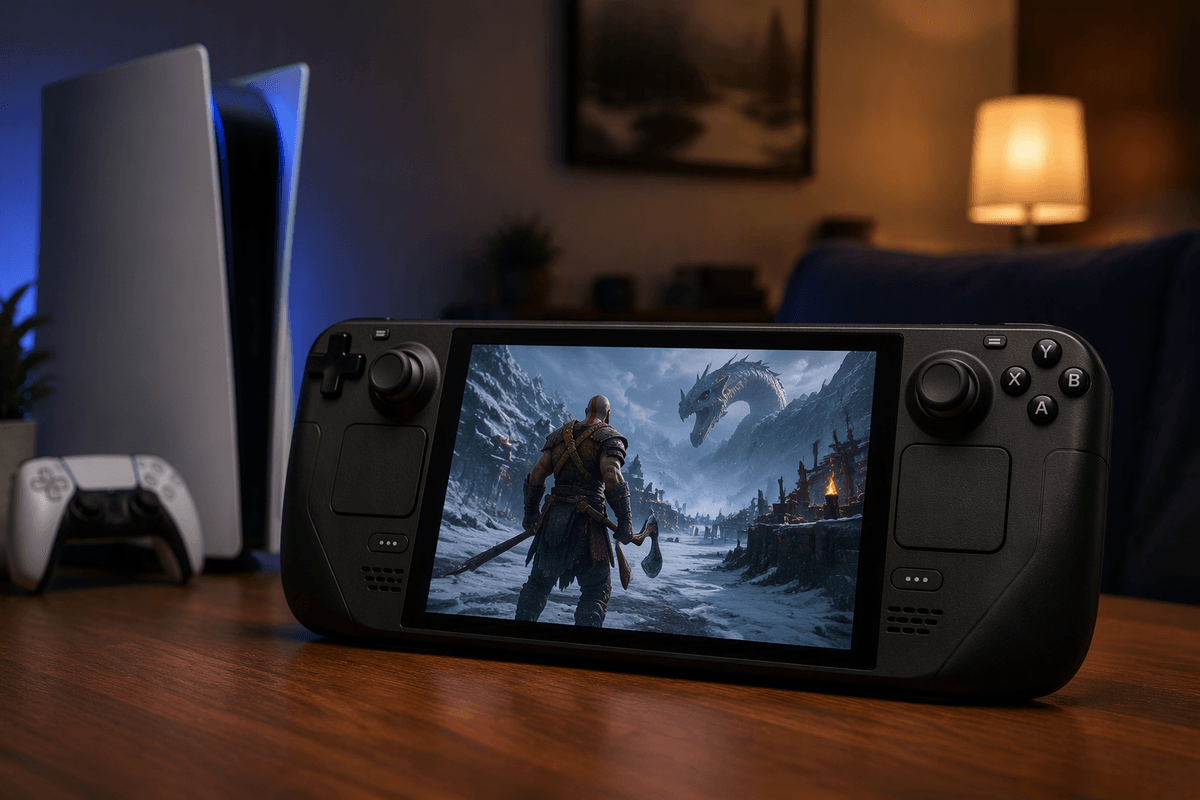
What “streaming PS5 to Steam Deck” actually means
You’re not “installing PS5 games” on the Steam Deck. You’re using the Deck as a screen and controller while the PS5 does the actual game running in your house. The PS5 encodes video and audio, sends it over your network, and the Deck decodes it and sends your button inputs back, like a private video call that happens to be a game.
That also means your experience is mostly shaped by your network, not the Deck’s raw power. A great setup can feel close to playing on a TV in the next room, while a busy Wi‑Fi network can add blur, stutter, or input lag. The upside is you can jump into your existing PS5 library without rebuying games, but you’re trading local reliability for streaming convenience.
Quick checklist before you start: accounts, updates, and network
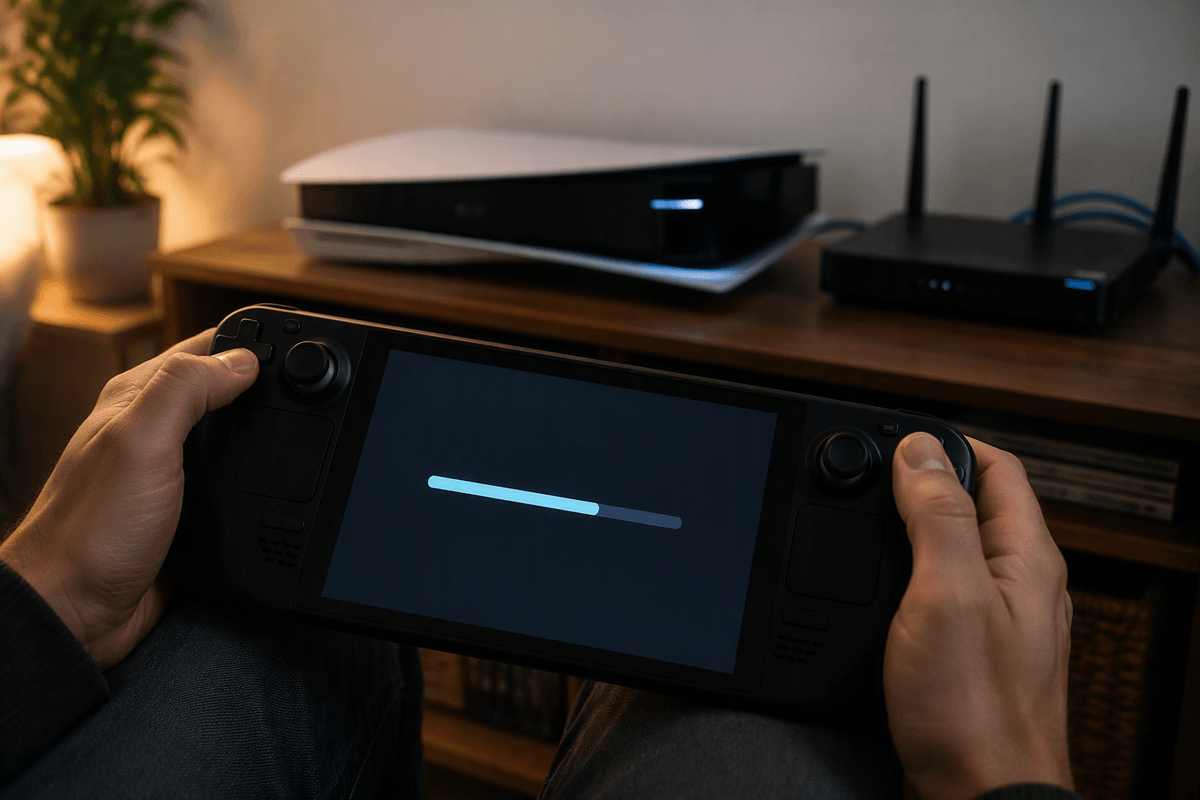
You can save yourself a lot of “why won’t it connect?” time by checking a few basics before you touch any Steam Deck setup. First, make sure you can sign into your PlayStation account on a normal browser and that you know which account is primary on the PS5; Remote Play pairing and some games’ licenses get weird if you’re bouncing between accounts.
On the PS5, update system software, then verify Remote Play is enabled (Settings → System → Remote Play). Set the console to stay available in Rest Mode (Power Saving settings), or you’ll keep “waking” it by walking to the TV. On the Steam Deck, update SteamOS and restart once so controller and Wi‑Fi fixes apply.
Network-wise, the easiest win is wiring the PS5 by Ethernet and putting the Deck on 5 GHz Wi‑Fi close to the router. If that’s not possible, expect occasional bitrate drops when other devices are streaming or downloading.
Choosing your approach: Chiaki4Deck vs other Remote Play options
You’ll usually choose between “Remote Play to your own PS5” and “play from Sony’s servers.” If your goal is to use the PS5 you already own—your saves, your installed games, and the feel of playing around the house—Remote Play is the lane you’re in. On Steam Deck, the most common choice is Chiaki4Deck (a Deck-focused build of Chiaki) because it’s designed around the Deck’s controls, quick launch from Steam, and the kind of bitrate/decoder tuning you actually need for stable play.
Other options exist, but each adds friction. The official PS Remote Play app isn’t available natively on SteamOS, so you’re looking at workarounds (Windows on Deck, Android-in-a-container, or streaming via another device), which can mean worse controller mapping or more “one update broke it” maintenance. Cloud streaming through PlayStation Plus can be convenient away from home, but it depends on Sony’s catalog and server conditions, and it won’t help you stream disc-only installs or anything not available in the cloud tier you pay for.
If you want “my PS5, in my hands,” Chiaki4Deck is the practical default. If you want “a PS game anywhere, even without my console,” cloud streaming is the separate decision—with a separate set of limits.
Setting up Chiaki4Deck on Steam Deck without guesswork
Most people get stuck in two places: installing the right build, then getting the PSN registration token so the PS5 will actually pair. On the Steam Deck, switch to Desktop Mode, open Discover, and install Chiaki4Deck (not plain “Chiaki” if both show up). Add it to Steam as a Non-Steam Game so you can launch it in Gaming Mode with your usual controller profile.
On the PS5, confirm Remote Play is still enabled and that you’re signed into the account you’ll use to play. Back on the Deck, open Chiaki4Deck and run the built-in PSN login/token helper (it should guide you through signing into PlayStation in a browser and returning with a registration token). Then add your console by entering the PS5’s local IP address and completing registration with that token. If discovery doesn’t find the PS5 automatically, it’s usually router isolation, guest Wi‑Fi, or the Deck and PS5 landing on different subnets.
Expect one practical annoyance: your PSN login may trigger extra verification (2FA, device checks), and that’s normal. Do it once carefully, then keep the token stored so you’re not repeating the same loop every session.
Dialing in picture, latency, and controller feel
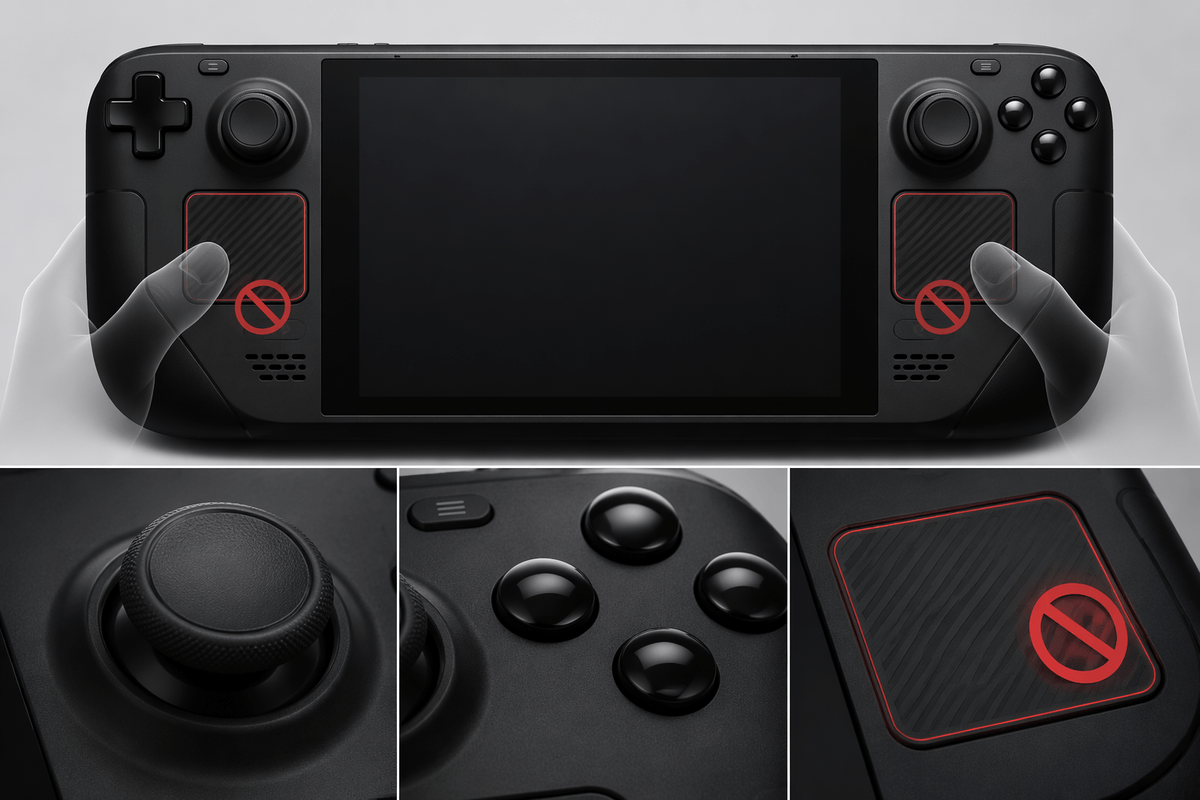
The first time you connect, your instinct is to crank resolution and bitrate until it looks “console sharp,” then wonder why it feels mushy. Start from smoothness: set the stream to 60 fps, keep resolution at 720p or 1080p depending on your Wi‑Fi, and raise bitrate only until blockiness stops being distracting. If you see sudden blur during camera turns, that’s usually bitrate dropping under load; backing off one step can look better overall because it avoids constant swings.
Latency is mostly about stability, not raw speed. Wire the PS5 if you can, and on the Deck prefer 5 GHz close to the router over “strong” 2.4 GHz. In Chiaki4Deck, try hardware decoding first; if you get weird stutter or audio crackle, swap decoder settings and retest in the same spot. For controller feel, use the built-in gamepad mapping, then fix the one thing that commonly breaks immersion: make the trackpads a touchpad/mouse only if you actually need them, or you’ll trigger accidental inputs in menus.
Playing away from home: internet setup and safety basics
The first time you try this away from home, the surprise is that “fast Wi‑Fi” isn’t the same as “good for Remote Play.” Hotel and guest networks often block the kind of inbound/outbound traffic Remote Play needs, and some cafés use captive portals that silently drop long-lived connections. If you can, use your phone’s hotspot as a baseline test: if it works there but not on the venue Wi‑Fi, it’s the network policy—not your Deck or PS5. Also remember the hard limit: your home upload speed matters just as much as your remote download, so a typical cable plan can look great at home but struggle when you’re sending 1080p60 out.
Before you leave, set the PS5 to stay available in Rest Mode, confirm you can wake it from the Deck while still on your home Wi‑Fi, and give your PS5 a reserved IP in the router so your setup doesn’t “move” after a reboot. Avoid random port-forwarding guides unless you understand the tradeoff; opening ports to the internet can increase your attack surface.
Troubleshooting the most common failure points fast
The fastest way to troubleshoot is to classify the failure: can’t find the PS5, can’t register/login, or it connects but plays badly. If the PS5 won’t show up or won’t wake, make sure the Deck and PS5 are on the same Wi‑Fi network (not guest), then try adding the PS5 by its local IP and confirm Rest Mode “stay connected to the internet” is enabled. If it used to work and suddenly doesn’t, your router likely handed the PS5 a new IP—reserve it and update the entry in Chiaki4Deck.
If registration/login loops, assume it’s account friction first: confirm you’re signing into the same PSN account that’s active on the PS5, complete any 2FA prompts, and regenerate the token once instead of retrying the same failed one. If you get a black screen or immediate disconnect after connecting, toggle hardware decoding (on/off) and keep everything else the same for that test.
If it connects but feels laggy or blurry, treat it like a network stability problem. Drop resolution one step, cap bitrate to something your Wi‑Fi can hold steadily, and test with the PS5 wired if possible. One real constraint: fixing “bad Wi‑Fi” can mean buying a better router or adding an access point, and that’s sometimes the only durable cure.
A practical “best setup” to keep and iterate on
A setup you can live with is usually: PS5 on Ethernet (or at least on the router’s strongest band), Deck on 5 GHz close to the same access point, Chiaki4Deck set to 60 fps, 720p if you move around the house a lot or 1080p if you play near the router, and a bitrate that’s “steady” instead of “max.” Lock the PS5 to a reserved IP so Chiaki4Deck doesn’t lose it after reboots, and keep Rest Mode wake enabled so sessions start without walking to the TV.
When you tweak, change one thing at a time and test in the same spot for five minutes. Treat upgrades like purchases, not magic settings: a wired run, a better router, or a dedicated access point costs money and time, but it’s what turns “sometimes great” into “boringly reliable.”