What “turning off Family Sharing for iTunes” really means
“Turning off Family Sharing for iTunes” usually means stopping purchase sharing for Apple Media Services (the App Store, iTunes Store, Apple Books, and Apple TV purchases). There isn’t a separate “iTunes switch” anymore; you change it in Family Sharing settings on your iPhone/iPad or Mac. You can either disable Purchase Sharing while keeping the family for things like location sharing, or you can leave/disband the family entirely.
Once purchase sharing is off, family members won’t see or download each other’s purchases, and the organizer’s payment method typically stops being used for everyone’s new purchases. A practical catch: anything already downloaded may keep playing until it’s removed, but re-downloading later can require buying it again under that person’s Apple Account.
Check your role: organizer, adult member, or child account
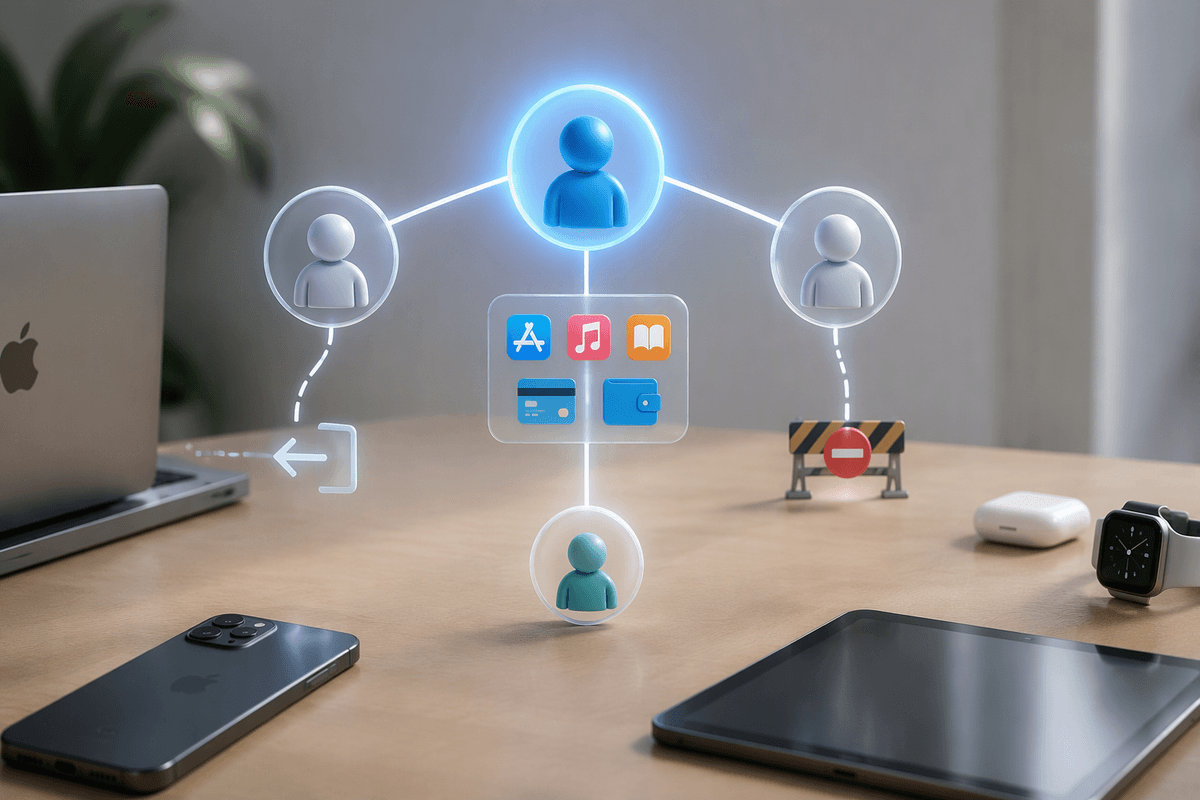
You’ll save time if you confirm what role your Apple Account has in the family, because the options you see depend on it. If you’re the Family Organizer, you can turn off Purchase Sharing for everyone, change the shared payment method, or disband the family group entirely. If you’re an adult member, you can usually leave the family yourself, but you can’t change organizer settings or the payment method for other people.
If the account is marked as a child, leaving is restricted and often requires the organizer’s approval (or moving the child to another family). That’s the most common reason people can’t find a “Leave Family” button or can’t finish the change without another adult signing in.
Quick prep before you switch anything off
You’re usually doing this because billing or access feels messy, so take two minutes to remove surprises. First, make sure everyone knows what will stop working: shared apps, music, movies, books, in-app subscriptions, and Apple TV channels purchased by someone else. If there’s something a person must keep, have them download it now and confirm it’s tied to their own Apple Account (check the purchase history under their account, not yours).
Then verify you can sign in on the device you’ll use to change it (Apple Account password and two-factor code), and note any active subscriptions billed through the organizer’s payment method. If you’re the organizer, expect a small admin cost: you may need to update payment methods on multiple devices afterward, especially for kids’ accounts.
Turn off purchase sharing on iPhone or iPad
You’ll do this in Settings, not in the iTunes app. On the iPhone or iPad signed in to the organizer’s Apple Account, open Settings, tap your name at the top, then tap Family (or Family Sharing). Tap Purchase Sharing, then turn off Share Purchases. If you’re asked which Apple Account is used for purchases, confirm it’s the organizer account you intend to change; switching the wrong one is an easy way to think you “turned it off” when you didn’t.
After you flip the switch, open App Store, tap your profile icon, and check Purchased. You should stop seeing the “Family Purchases” view for other members. One practical limitation: the change doesn’t retroactively remove apps or media already on a device, and downloads can lag if a device hasn’t refreshed Family Sharing yet. If someone still sees shared purchases, have them restart the device and confirm they’re signed into the correct Apple Account under Media & Purchases.
Turn off Family Sharing or purchases on Mac and Windows
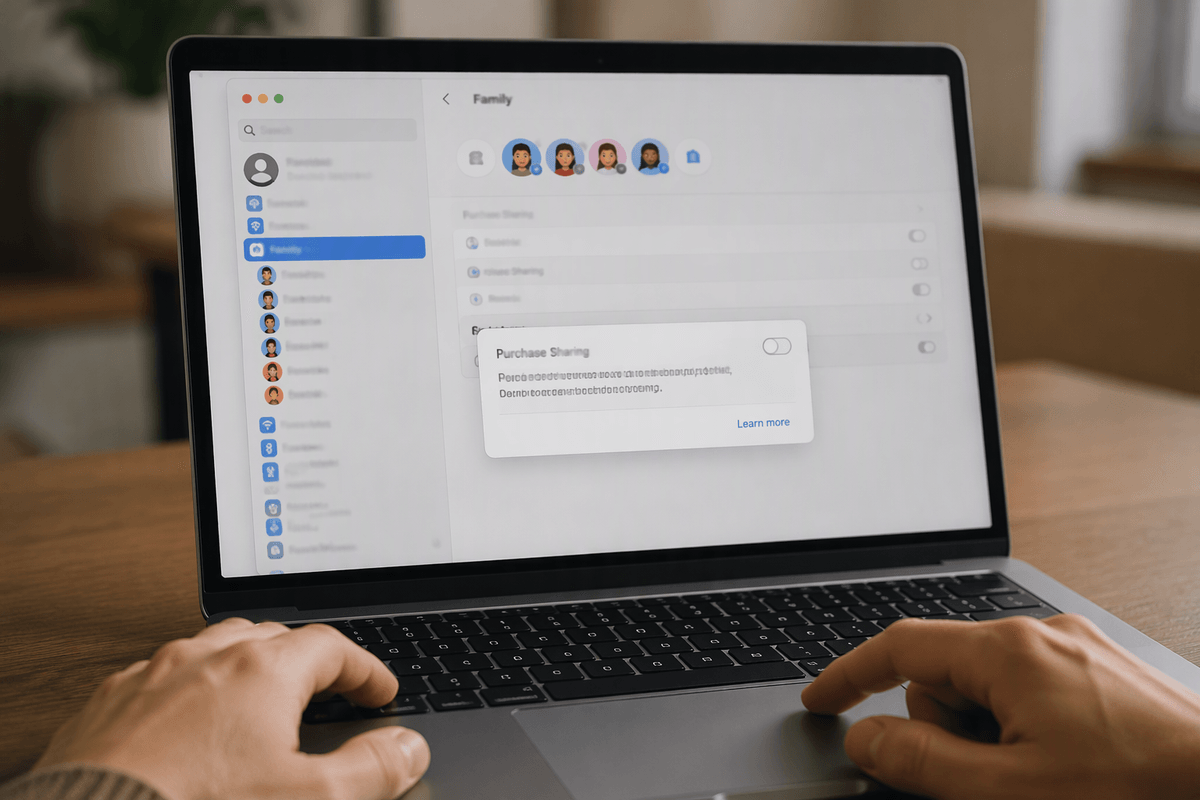
On a Mac signed in to the organizer’s Apple Account, you’ll change this in System Settings (not in the Music app). Open System Settings, click your name (Apple Account), then click Family. Choose Purchase Sharing and turn off Share Purchases. If your Mac is on an older macOS version, look for System Preferences > Family Sharing instead. Afterward, open the App Store, click your name at the bottom-left, and confirm you no longer see a Family Purchases view for other members.
On Windows, this is where people get stuck: iTunes (or the Apple Music/Apple TV apps) typically won’t give you a “turn off Purchase Sharing” switch. You’ll usually need to make the change from the organizer’s iPhone/iPad or a Mac, then wait for the Windows PC to reflect it after a sign-out/sign-in under Media & Purchases. Plan for a practical delay if devices haven’t refreshed recently.
If you’re the organizer: how to stop sharing or disband the family
You’ll make the biggest change as the organizer: you can stop sharing purchases without breaking the family, or you can disband the group. If you only want to end iTunes/App Store sharing, leave the family in place and just keep Purchase Sharing turned off; that preserves things like location sharing or shared calendars, depending on what you use. If you want everything separated, go to Settings > your name > Family (or Family Sharing) > Stop Using Family Sharing and confirm. On a Mac, use System Settings > Apple Account > Family, then choose the option to stop Family Sharing.
Expect a practical cleanup cost: kids’ accounts may need a valid payment method or Ask to Buy changes, and any shared subscriptions billed to the organizer may stop for everyone unless each person starts their own plan.
What happens after you turn it off (and what you keep)
You’ll usually notice the change in two places: “Family Purchases” disappears in the App Store/Apple TV/Books purchase views, and new charges start going to each person’s own payment method (or they’ll be prompted to add one). Shared subscriptions tied to Family Sharing can also stop benefiting the group unless they’re still on an active family plan under the organizer.
What you keep is anything purchased under your own Apple Account. What you may lose is access to apps, music, movies, books, and in-app purchases originally bought by someone else. Items already installed or downloaded can keep working until they’re removed, but re-downloading later typically requires buying it again. Give it a few minutes to sync, and sign out/in under Media & Purchases if a device looks “stuck.”
Common issues: can’t leave, missing purchases, or options don’t appear
If you can’t leave the family or the button doesn’t appear, double-check the account type: child accounts can’t leave on their own, and adults can’t “leave” if they’re the organizer—you must stop Family Sharing or remove members first. If Purchase Sharing options are missing, you’re often signed into a different Apple Account under Media & Purchases than you are for iCloud; fix that mismatch, then try again.
If purchases look “missing,” assume it’s ownership, not a glitch: you’ll only keep items bought on your own account. Also allow for sync delays—restart the device, then sign out/in under Media & Purchases to force a refresh.