Start with what you actually play on PC
If you mostly play shooters, racing, or action games on PC, a controller choice is less about “best overall” and more about what feels predictable under pressure. A Soulslike or platformer rewards precise diagonals and consistent triggers; a racing game punishes mushy throttle control; a couch co-op night cares more about quick pairing and battery life than boutique features. Pull up your last 10–20 played games on Steam or Xbox app and label them: aim-heavy, timing-heavy, or menu-heavy. That quick audit prevents overspending on features you won’t use—and avoids cheap pads that drift, disconnect, or fatigue your hands mid-session.
Choose a layout: Xbox-style, PlayStation-style, or niche
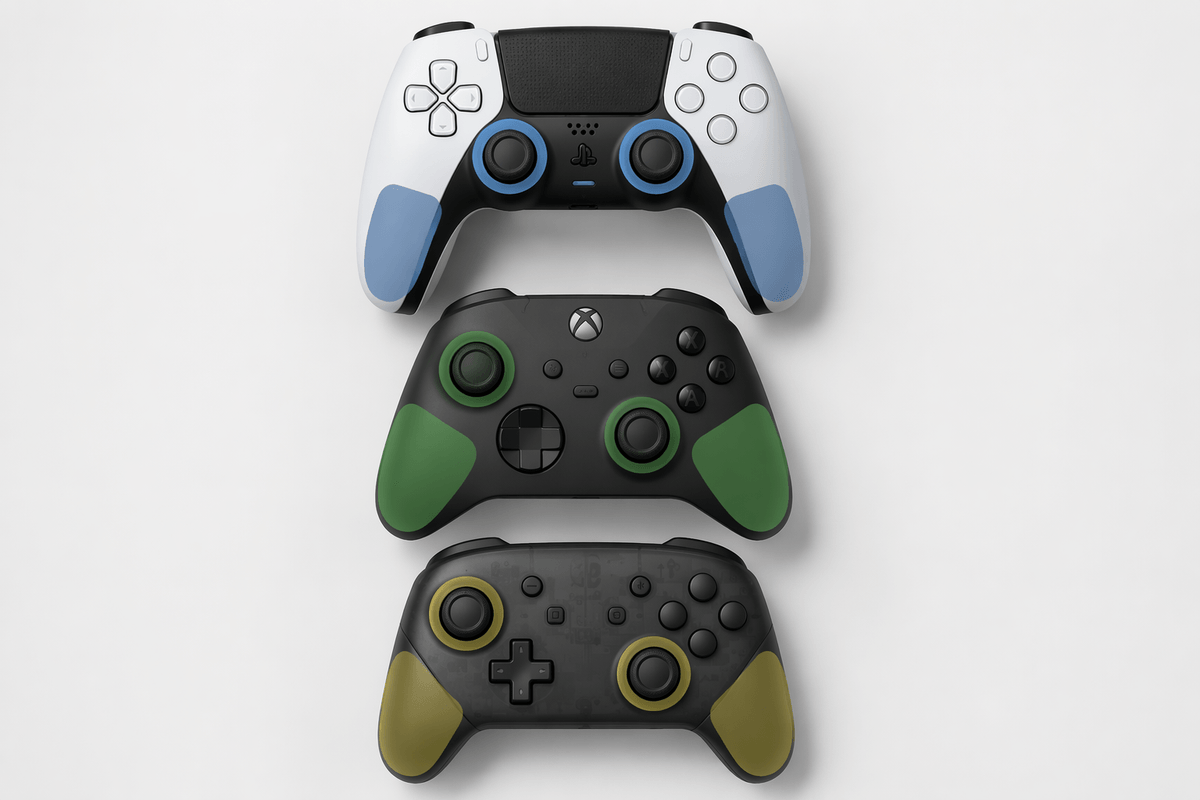
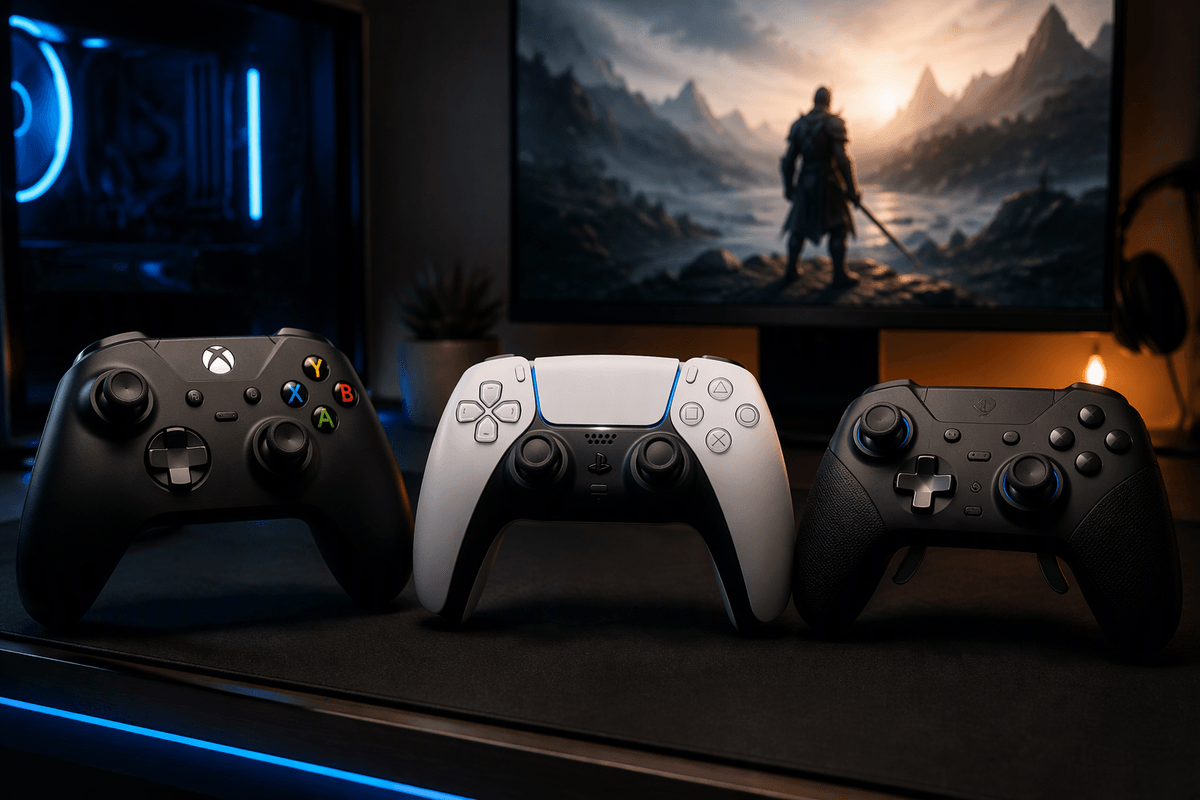
You’ll feel the layout choice most in your thumbs. Xbox-style (offset sticks) tends to suit games where the left stick is your “home base” for movement—shooters, open-world action, racing—because your left thumb sits in a more neutral position. PlayStation-style (symmetrical sticks) can feel more balanced for games that ask both sticks to do equal work, like twin-stick shooters or some platformers, and it’s familiar if you’ve spent years on a DualShock/DualSense.
Niche layouts are worth considering only when you have a specific reason: a Switch-style pad for strong gyro aiming, a fightpad for 2D fighters, or a controller built around back buttons for competitive play. The catch is muscle memory and game prompts—many PC games still show Xbox button icons by default, so switching layouts can add small, constant friction even if the controller “works.”
Compatibility first: Windows support, Steam Input, and games
The least exciting part of buying a controller is also the part that saves you the most time: does Windows recognize it cleanly, and do your games show the right prompts without workarounds? On PC, Xbox controllers are the “it just works” baseline because most games speak XInput by default. Many third-party pads also offer XInput modes, but some ship in DirectInput, which can mean missing vibration, weird trigger behavior, or doubled inputs unless you switch modes. If you buy a PlayStation-style controller, check whether your must-play games natively support it (and its features) or whether you’re relying on translation.
Steam Input is the safety net—it can remap almost anything, fix odd layouts, and even create per-game profiles. It’s also a layer you may not want to fight. Game Pass titles, Epic/EA/Ubisoft launches, and some anti-cheat setups can ignore Steam Input or behave inconsistently, so “works in Steam” doesn’t always mean “works everywhere.” Budget time for firmware updates, and if you want wireless without headaches, factor in the cost (and USB port) of a good 2.4 GHz dongle when it’s available.
Wired, Bluetooth, or 2.4 GHz: latency and convenience
Most people notice connection choice when something goes wrong: a missed parry, a stuttery camera pan, or a controller that won’t wake up cleanly. Wired is still the baseline for “no surprises”—no pairing, no RF interference, no battery anxiety, and the lowest practical latency. The downside is obvious: cable drag, limited distance, and one more wire competing with your mouse and keyboard.
Bluetooth is the most convenient on a laptop or compact setup, but it’s also the most variable. Some PC Bluetooth radios are great; others introduce spikes, flaky reconnects, or reduced feature support depending on the controller and driver stack. If you go Bluetooth, a decent USB Bluetooth adapter can cost a bit, but it often saves hours of troubleshooting.
2.4 GHz wireless (with a dedicated dongle) is usually the best “wireless without compromise” option: steadier connection and latency closer to wired, at the cost of a USB port and keeping track of the dongle.
Ergonomics you notice after two hours, not two minutes
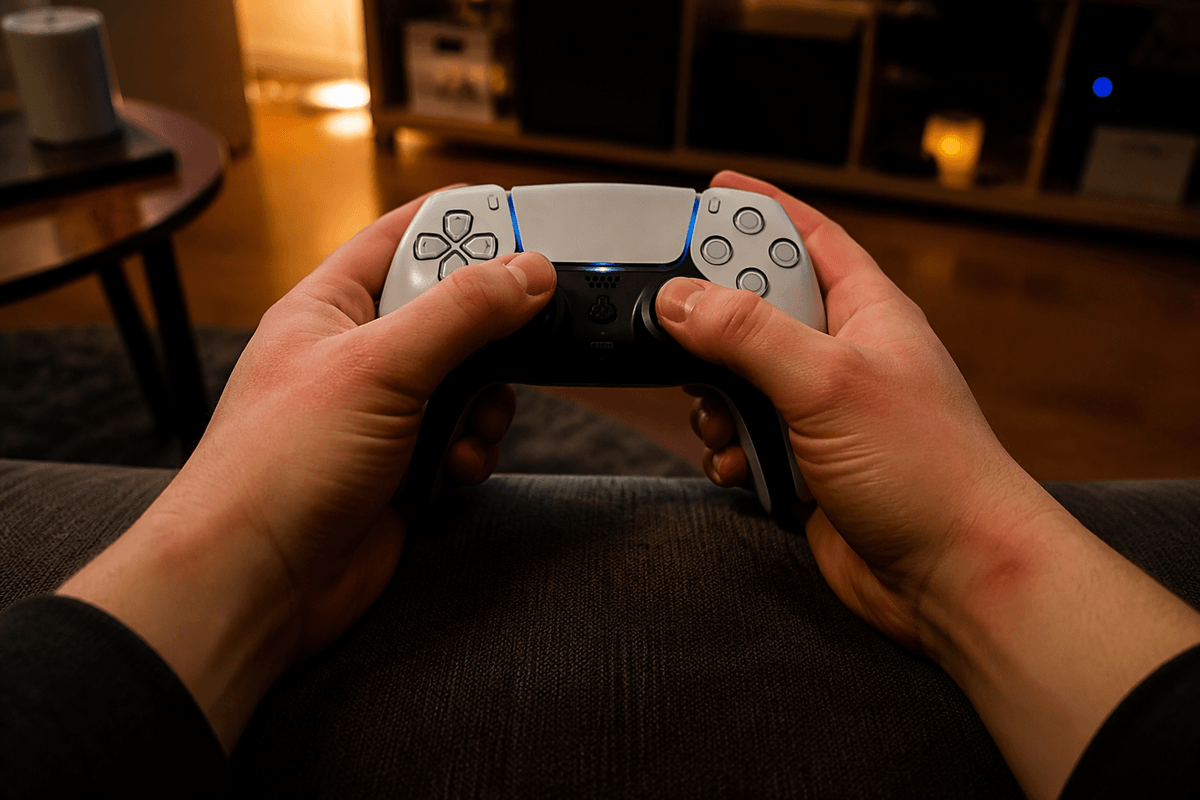
You can “get used to” almost any controller for five minutes. Two hours into a session is when shape and control placement start charging interest. Pay attention to where your palms land: some grips force your wrists to angle inward, which can feel fine at first and then turn into a dull ache during long RPG or co-op nights. Stick height and tension matter too—higher sticks can give finer aim but may fatigue your thumbs, while very light sticks can feel twitchy in shooters.
Triggers and bumpers are another long-session tell. If the trigger pull is heavy or the bumper sits too high, your index fingers end up strained in racing games or anything that uses bumpers for dodge/skills. Also check reach to Start/Menu and D-pad accuracy; small mis-hits become constant friction in menu-heavy games. The practical constraint: you can’t spec-sheet your way to comfort, and returns aren’t always free, so buy from a retailer with an easy return window and test it during your longest normal play session.
Features worth paying for: Hall effect, paddles, gyro, haptics
The feature upgrades that actually change day-to-day use are the ones that reduce failures or expand what your hands can do without moving. Hall effect sticks (magnetic sensors) are worth paying for if you’ve ever had stick drift or you play a lot of aim-heavy games; they don’t make you better overnight, but they can stay consistent longer than traditional potentiometer sticks. The trade-off is cost, and some controllers still need good calibration software to feel right.
Back buttons/paddles are the biggest “skill-per-dollar” feature for shooters, action games, and anything with sprint/dodge/jump on face buttons. Keeping thumbs on the sticks while you jump or reload is a real advantage, but only if the paddles are comfortable enough that you won’t accidentally press them under stress. Gyro is most valuable when a game (or Steam Input profile) is set up well—great for fine aiming without cranking stick sensitivity—yet it adds setup time and isn’t supported everywhere. Premium haptics can be immersive, but on PC they’re often the first feature to get downgraded or ignored, so don’t buy a controller for haptics alone.
Set your budget and pick with confidence
You’ll buy faster and regret less if you set a ceiling based on what would actually annoy you: drift, disconnects, or missing back buttons. Under $40, prioritize basic XInput support, a solid D-pad, and a reliable wired connection; treat everything else as a bonus. Around $50–$80 is the “safe pick” range for most PC players: better build, steadier wireless options, and fewer weird compatibility quirks. Above $100, only pay up if you’ll use the extras weekly—paddles for shooters, Hall effect for longevity, or a strong 2.4 GHz mode.
Before you click buy, check three things: it has an XInput mode (or proven Steam Input profiles), it supports your preferred connection on PC without hacks, and returns are easy if the ergonomics don’t work after a long session. That’s the difference between a controller you own and a controller you trust.