Start with the symptoms: black screen, loading loop, or error code
You usually see one of three patterns when Netflix fails on an LG TV: a black screen after you open the app, a spinning/loading loop that never reaches profiles, or an on-screen error code. A black screen often points to the app hanging or the TV struggling with memory, especially if other apps also feel sluggish. A loading loop is more commonly a network handshake problem—Wi‑Fi is connected, but Netflix can’t reliably reach its servers. Error codes are useful because they narrow the cause fast; write the full code down exactly. If Netflix is down everywhere, no TV setting will fix it.
Quick wins you can try in five minutes
Start with the simplest “unstick” actions that clear a temporary hang. Back out of Netflix completely, then force-close it by holding the Back button until you return to Live TV (or open the recent/apps view and close Netflix, if your model shows it). If the TV has been on for days, do a full power cycle: turn the TV off, unplug it for 60 seconds, then plug it back in and wait another minute before launching Netflix.
Then check for quick tells. Open YouTube or the LG Channels app—if those also stall, you’re likely dealing with network or TV-wide slowdown, not Netflix alone. If other apps work, verify your Netflix account can stream on your phone over the same Wi‑Fi, and make sure the TV’s date/time is set to Auto (a wrong clock can break sign-ins). One practical constraint: this won’t fix a true outage or an app version bug, but it rules out the common “hung session” fast.
When it’s really your Wi‑Fi: tests and targeted fixes
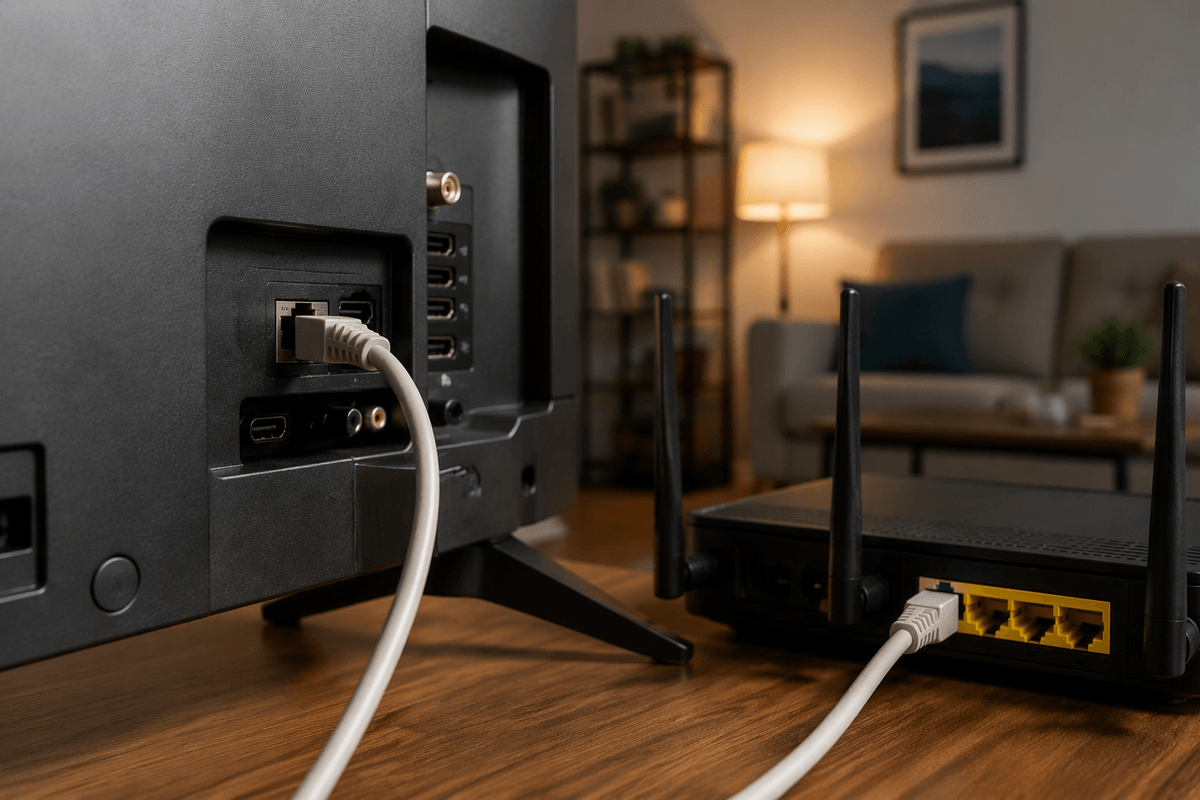
A lot of “Netflix is broken” cases are really “Wi‑Fi is connected, but it’s not stable enough for streaming.” On the TV, open Settings → Network and confirm it shows Connected to Internet, not just connected to your router. Then run the simplest comparison test: stand near the TV and play a video on your phone on the same Wi‑Fi. If the phone also buffers or drops quality, focus on the network first.
Two targeted fixes usually matter more than random rebooting. First, restart the router/modem the right way: unplug both, wait 60 seconds, plug the modem in, wait until it’s fully online, then plug in the router. Second, reduce interference and distance. If your router has both 2.4 GHz and 5 GHz, try the other band (5 GHz is faster close-up; 2.4 GHz often reaches farther through walls). If possible, move the router higher and more open, or temporarily test a wired Ethernet connection to the TV to confirm Wi‑Fi is the weak link. The practical catch: Wi‑Fi fixes can’t overcome an ISP outage or a congested neighborhood line at peak hours.
Fix the Netflix app itself: updates, cache-like resets, reinstall
If other apps stream fine and your Wi‑Fi tests look solid, treat Netflix itself as the suspect. Start by checking for an app update in the LG Content Store, then also check for a TV firmware update under Settings → Support → Software Update; mismatches can cause Netflix to hang at launch. If Netflix opens but freezes on profiles or loops on loading, do a “cache-like” reset: sign out of Netflix (Get Help/Settings inside the app), then restart the TV (unplug for 60 seconds) and sign back in. This clears a lot of stuck sessions without changing anything else.
If it still fails, reinstall Netflix. Delete the app, restart the TV, then install it again and log in fresh. The annoying cost: you’ll need to re-enter your password, and any saved preferences on the TV may take a moment to re-sync.
LG TV settings that quietly break streaming
You’ll occasionally chase Netflix for an hour when the real problem is a TV setting that changed quietly. Start with time and region: keep Date & Time set to Auto, and don’t use a mismatched Location/Service Country unless you know why—sign-in and playback checks can fail when the TV’s “identity” doesn’t line up.
Then check connection method and IP settings. In Settings → Network, toggle Wi‑Fi off/on, and if your TV is set to manual DNS, switch back to Auto (or try a well-known DNS like 8.8.8.8 temporarily). Also look at Energy Saving modes; aggressive power saving can cause background network drops on some models. The trade-off is practical: changing network settings may require re-entering Wi‑Fi passwords and can briefly disrupt other devices.
If you use a stick or box: isolate HDMI and external device issues
If you watch Netflix through a Roku, Fire TV, Apple TV, or cable box app, treat the TV and the device as separate suspects. First, switch inputs and confirm the TV itself is stable (menus responsive, other HDMI source works). Then isolate the HDMI path: unplug and firmly reseat both ends of the HDMI cable, try a different HDMI port, and if you have one, swap to a different cable. A flaky handshake can look like Netflix “loading” when it’s really video failing to sync.
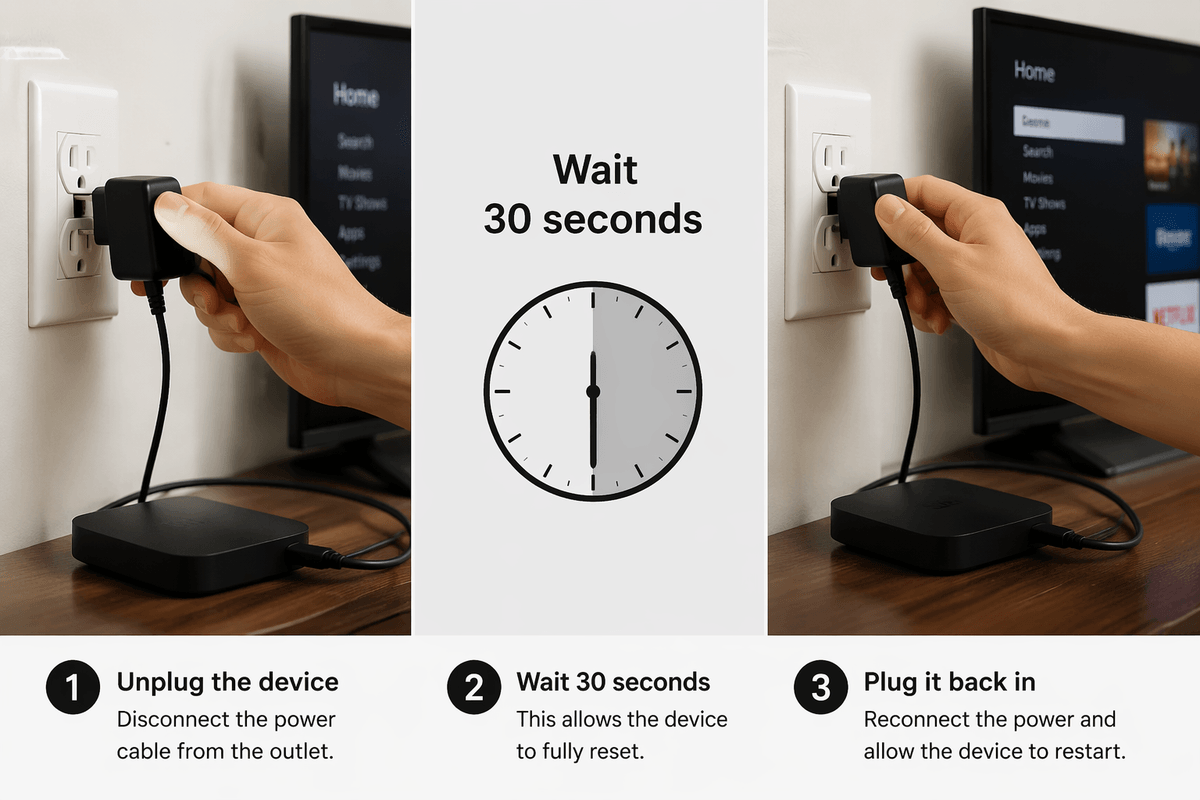
On the streaming device, do a true restart (not just sleep): power it off or unplug it for 30 seconds, then check for device OS updates and a Netflix app update. If Netflix fails only on that device, test the same Netflix account on another device on the same Wi‑Fi to confirm it’s not an account lock or outage. One practical limitation: some older sticks struggle with 4K/HDR; lowering output resolution can be a useful test.
Last resorts and when to contact Netflix or LG support
If Netflix still won’t load after the app reinstall and network checks, use the “nuclear” tests that separate TV problems from service problems. Try a wired Ethernet connection (even temporarily) and, if you can, try a different network like a phone hotspot to see if your home ISP is the limiter. If Netflix fails only on this TV while other devices stream fine, reset the TV’s network settings (and only then consider a full TV reset, because it wipes logins, Wi‑Fi, and picture settings).
Contact Netflix support when you have a repeatable error code, your account works elsewhere, and the app still fails after reinstall. Contact LG support when multiple apps misbehave, the TV won’t update firmware, or the TV reboots/freezes outside Netflix. Have your TV model, webOS version, Netflix error code, and a short list of what you already tried.