Why “Mailer-Daemon” spam shows up in your inbox
You’ll usually see “Mailer-Daemon,” “Undeliverable,” or “Delivery Status Notification” messages when a mail server is reporting that a message couldn’t be delivered. The confusing part is that the failed message may not have been sent by you at all. Spammers often forge (spoof) your email address in the “From” field, then blast messages to bad or blocked addresses. When those messages bounce, some servers send the failure notice to the forged address—your inbox—creating a flood of scary-looking “returns.” It can also happen when your account is actually sending mail (due to a compromised password or a hacked device), which is why quick checks matter.
Real bounces vs. backscatter: how to tell quickly
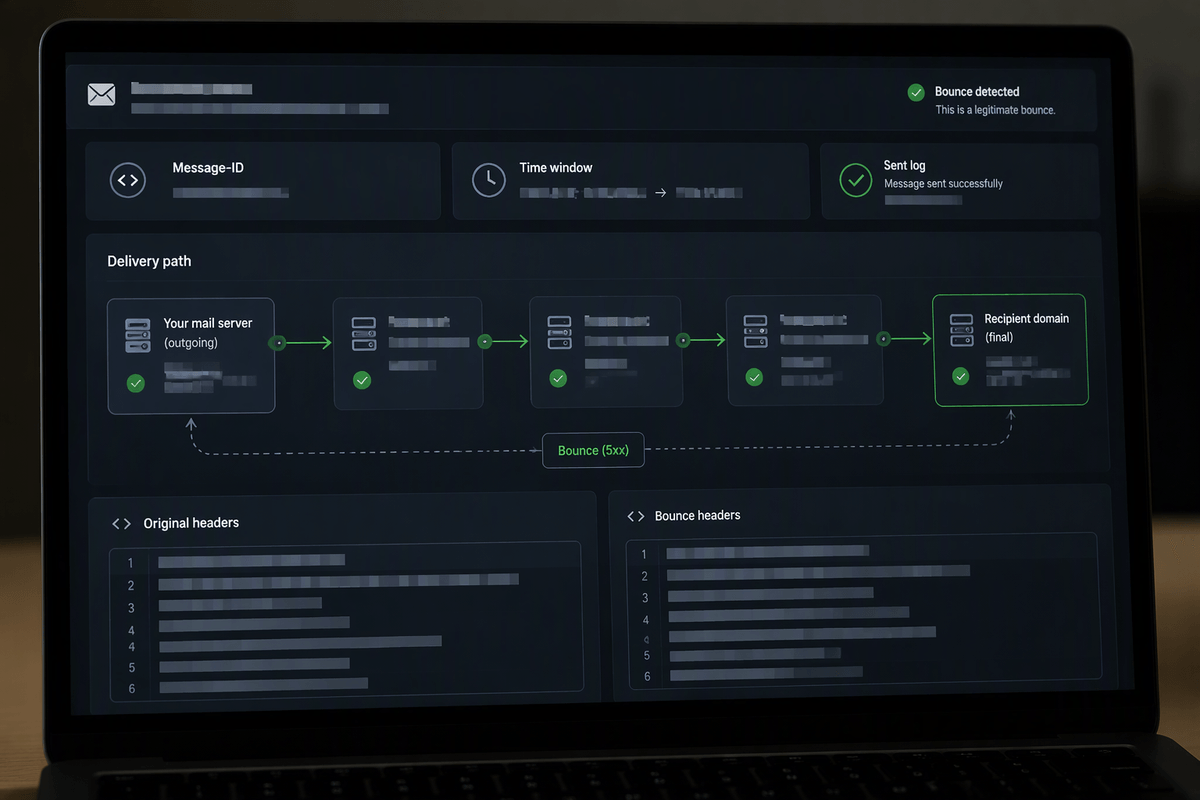
A real bounce usually lines up with something you recognize: you sent an email recently, and the notice names the same recipient and time window. It often references your provider’s outgoing servers and includes a “message-id” and a clear reason like “mailbox full,” “user unknown,” or “blocked by policy.” If you can find the original message in your Sent folder (or in your mail provider’s sent logs), that’s a strong sign it’s legitimate.
Backscatter looks mismatched. The “undeliverable” notice claims you sent something, but you have no matching item in Sent/Outbox, and the recipient list is random or huge. The notice may include an attachment called “Original Message” or “.eml” that you don’t want to open, and the “From” display name may be generic (“MAILER-DAEMON”) while the actual sending server is unfamiliar. The catch is that some legitimate bounces are poorly formatted, so you’re looking for consistency, not perfection.
Common causes: spoofing, compromised accounts, and misconfigured servers
The most common cause is simple spoofing: a spammer puts your address in the “From” line because it looks real, and some receiving servers still send bounce notices to that forged address. You didn’t send anything, but you get the blowback because another server handled the bounce poorly.
The second cause is an actual compromise. If someone gets your mailbox password (or a device with your mail saved) they can send through your provider’s real outgoing servers, which produces bounces that look more “legit” because they truly originated from your account. Small spikes can come from a single infected laptop; big spikes often come from automated login attempts that succeed once.
A third cause is misconfiguration: a website contact form, a mailing list, or an old server may be set to send bounces to the address in “From” instead of using a proper return path. Fixing that usually means changing app settings, which can take time and may require your host or email provider to help.
First checks to confirm whether mail really came from you
The fastest reality check is your own “Sent,” “Outbox,” and “Drafts.” Look for messages you don’t recognize around the timestamps shown in the bounce notice. If you use a provider like Google Workspace, Microsoft 365, or a hosted domain mailbox, also check the account’s “recent activity” or sign-in history for logins you don’t recognize (new locations, devices, or a lot of failed attempts followed by a success).
If you manage a domain, open the bounce notice but don’t open any attached “original message” files. Expand the full headers and look for clues that the message actually left your provider: “Received:” lines that mention your normal outgoing servers, and authentication results that say SPF/DKIM passed for your domain. A bounce tied to an unfamiliar sending IP, missing authentication, or a wildly random recipient is usually spoofing/backscatter.
One practical constraint: header checks take a few minutes and look different in every mail app, so use your provider’s web interface if your phone client hides details.
Immediate containment if you suspect your account or system is abused
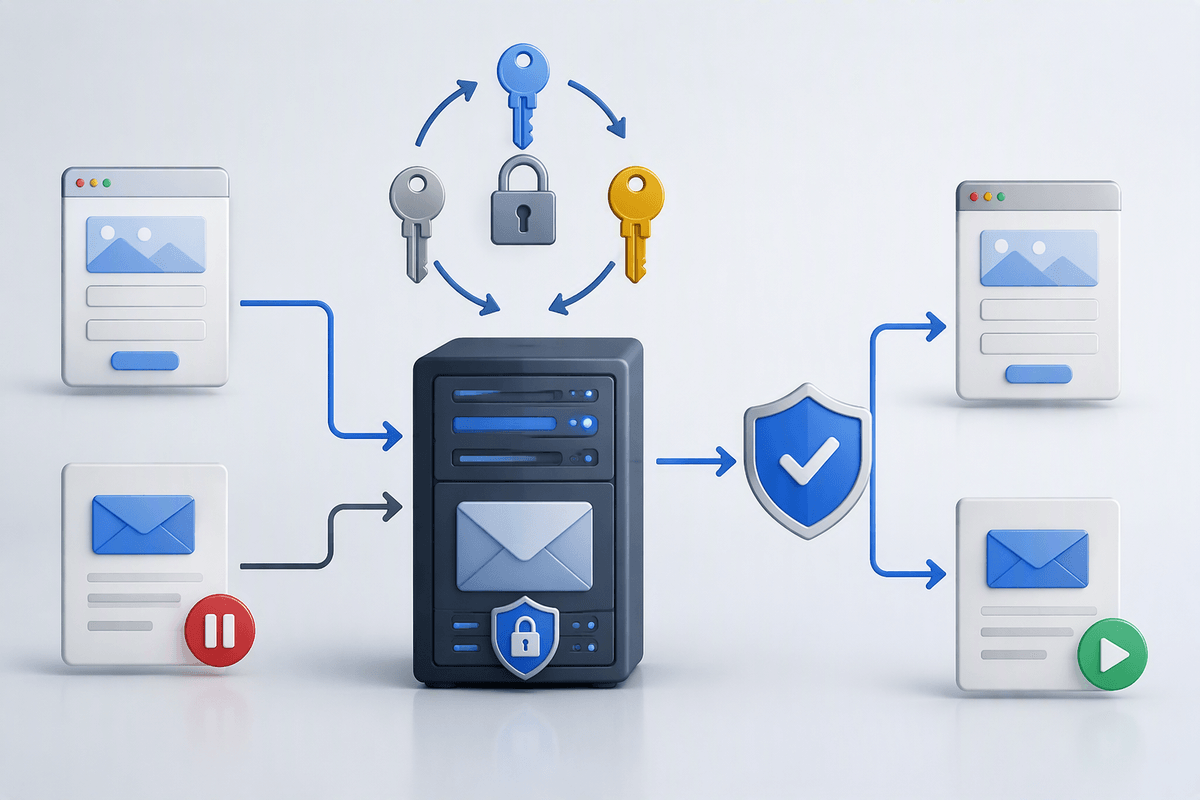
If you find mail in Sent that you didn’t send, or your sign-in history shows a login you don’t recognize, treat it as an active incident and focus on stopping new outbound mail first. Change the mailbox password immediately (don’t reuse an old one), sign out other sessions if your provider offers it, and turn on two-factor authentication. Then check mailbox rules/filters and forwarding settings—attackers often add a hidden rule that auto-forwards mail or deletes warnings so you miss them.
On your devices, remove and re-add the account only after you’ve changed the password, and run an antivirus/malware scan on any computer that has recently used the mailbox. If you send through a website (contact form, SMTP plugin, newsletter tool), rotate any saved SMTP password/API key and pause outgoing mail from that app until you confirm it’s clean. Expect some disruption: resetting sessions can break older mail clients, and rotating app credentials may require updating multiple devices and services.
Preventing future blowback with SPF, DKIM, DMARC, and smart bounce rules
You’ve done the urgent cleanup; now the goal is making it harder for anyone to successfully impersonate your address again. If you use a custom domain ([email protected]), publish SPF and DKIM so receiving systems can verify what’s allowed to send for your domain. SPF is a DNS record listing the services allowed to send mail (your provider, your website host, your email marketing tool). DKIM adds a cryptographic signature so receivers can tell a message really came from an approved sender and wasn’t altered. The practical difficulty is completeness: forget to include one legitimate sender and you’ll break mail from that service until you update SPF/DKIM.
DMARC ties it together by telling receivers what to do when SPF/DKIM don’t align with your domain (monitor, quarantine, or reject) and where to send reports. Start with a “monitor” policy so you can see what’s trying to send as you, then move gradually to quarantine/reject once you’re confident your real senders pass. Finally, use “smart bounce rules” in your mailbox: filter obvious backscatter (no matching Sent item, random recipients, suspicious attachments) into a separate folder, but avoid deleting all bounces—real delivery failures still matter when you’re emailing customers.
Cleaning up deliverability after a spike in bounces
After a bounce spike, assume some receivers temporarily trust you less, even if it was “just” spoofing. First, stop any nonessential sending for a day and fix the root cause (account compromise, bad website form, missing SPF/DKIM sender). Then watch your provider’s sending logs or postmaster/insights tools for blocks and complaint rates, and send a small test to a few outside addresses (Gmail, Outlook, Yahoo) before resuming normal volume.
If you run newsletters, warm back up gradually: start with your most engaged recipients, and clean obvious bad addresses (old lists, role accounts like info@). Don’t try to “blast through” the problem—high volume during a reputation dip can extend it. A practical cost: list cleanup and DNS/auth changes can take a few days to settle and may require coordination with your host or email vendor.
When to escalate and what to send to support
Escalate when you see unauthorized Sent mail, repeated sign-ins you don’t recognize, or your provider shows outbound blocks you can’t clear. It’s also worth escalating if bounces keep arriving after you’ve set SPF/DKIM/DMARC and rotated passwords, because a website, SMTP relay, or old server may still be misconfigured. Send support: the exact bounce message (copied text, not screenshots), full headers from one example, the time range of the spike (with time zone), your sending domain, and any sending services you use (website form, CRM, newsletter tool). Expect some back-and-forth; support may ask you to verify DNS changes.