Start with a quick Wi‑Fi reality check
You tap your Wi‑Fi name, it spins, and then either says “Unable to Join” or connects with no internet. Before changing settings, do a quick reality check: are other devices on the same Wi‑Fi working right now (a laptop, another phone, a TV)? If nothing connects, the problem is almost certainly the router, modem, or ISP—not your iPhone. If other devices work, note what’s different: are you far from the router, behind thick walls, or on a crowded public hotspot? Also check you’re not accidentally on cellular-only mode: confirm Wi‑Fi is on and Airplane Mode is off.
Figure out if it’s your iPhone or the network
If one other device connects fine but your iPhone won’t, treat it like a phone-side issue. Try a quick cross-check: can your iPhone join a different network (a hotspot from a coworker, a coffee shop Wi‑Fi, or your own Personal Hotspot from another phone)? If it works elsewhere, your home/work network is the likely culprit: wrong password saved, a device limit on the router, MAC filtering, or a “paused” device in the router/app.
If your iPhone can’t join any Wi‑Fi network, focus on the iPhone: you may be stuck behind a sign-in page (common on hotels/schools), or a glitch in Wi‑Fi settings. One practical constraint: on managed school/work networks, you may need the IT/admin to re-allow your device—no amount of tapping will override that.
Reconnect the right way: toggle, rejoin, forget
Most “won’t join” problems clear up when you force a clean reconnect instead of tapping the network name repeatedly. First, open Control Center and toggle Wi‑Fi off, wait 10 seconds, then turn it back on. If that doesn’t help, go to Settings > Wi‑Fi and tap the (i) next to the network, then tap Disconnect (or just switch to a different network for a moment) and come back.
If you still get “Unable to Join,” use Forget This Network. That wipes the saved password and any bad settings tied to that Wi‑Fi name. After forgetting, rejoin and type the password carefully (watch for similar-looking characters). One limitation: if this is a school or workplace Wi‑Fi with a certificate or special login, forgetting can remove required configuration, and you may need the network admin to set it up again.
Restart fixes that actually matter (phone and router)
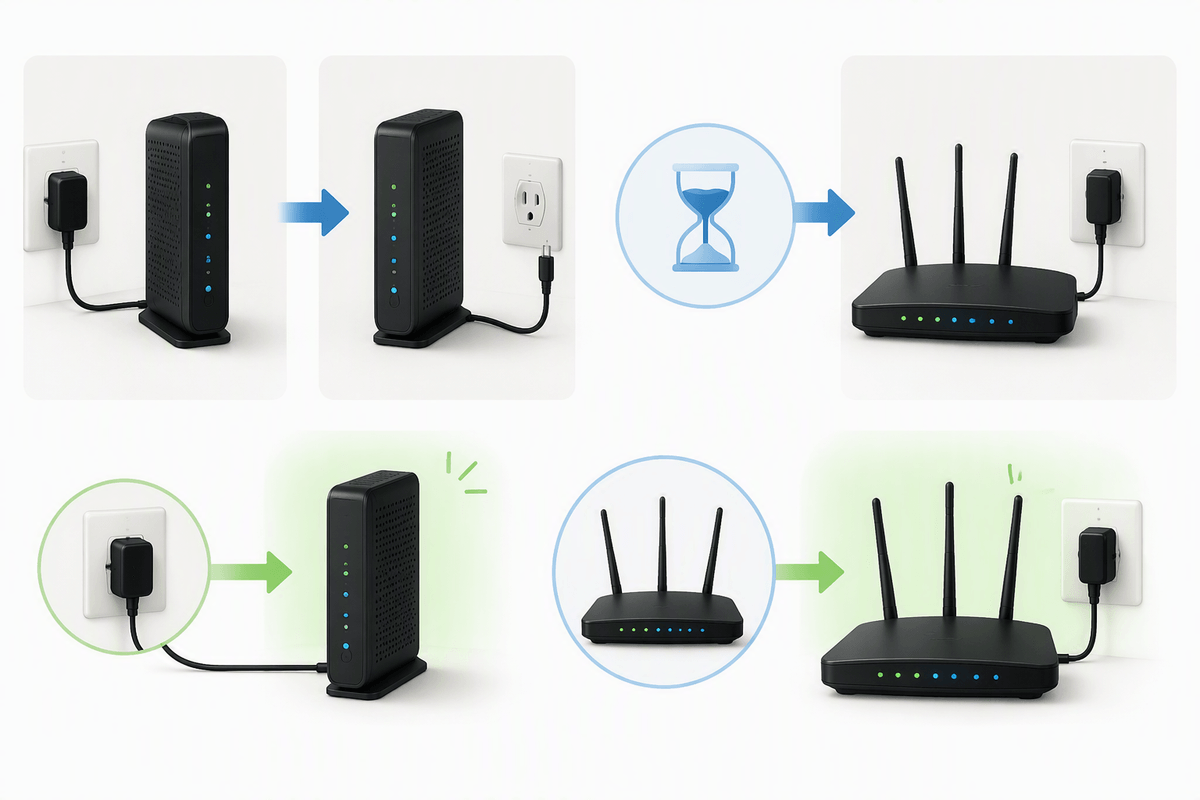
When reconnecting doesn’t stick, a restart is worth doing—just do the kind that clears the right caches. Restart your iPhone (power off fully, wait 15–20 seconds, power back on). This resets the Wi‑Fi radio and clears temporary networking glitches without changing any settings. If you’re on a home or small-office network, restart the router too: unplug power (and the modem if you have one), wait a full 60 seconds, then power the modem on first and the router second. Give it 2–5 minutes to come back online before testing.
The practical downside is downtime: everyone on that Wi‑Fi gets kicked off, and smart home devices may take a few minutes to reconnect. If other devices were already online and stable, prioritize the iPhone restart first so you don’t disrupt the whole network unnecessarily.
Settings that silently break Wi‑Fi on iPhone
You can have Wi‑Fi “on” and still be blocked by a setting that doesn’t look like a Wi‑Fi setting. Check Low Data Mode for that specific Wi‑Fi: Settings > Wi‑Fi > (i) > Low Data Mode. It usually won’t prevent joining, but on some hotspots it can make things behave oddly while you’re trying to log in.
Then look at Private Wi‑Fi Address (the MAC randomization setting) under the same (i) menu. Some workplace/school networks whitelist devices and will reject “new” addresses; toggling Private Address off for that network can get you back on. The cost is reduced tracking protection on that Wi‑Fi. If you use iCloud Private Relay, try turning it off briefly as well (Settings > Apple ID > iCloud > Private Relay) to rule out a network that blocks it.
When your network needs a reset (but not a full wipe)
Sometimes the Wi‑Fi network itself is fine, but the saved networking stack on your iPhone is tangled enough that reconnecting won’t clear it. If you’ve tried toggling Wi‑Fi, forgetting/rejoining, and a full iPhone restart, the next step is Reset Network Settings: Settings > General > Transfer or Reset iPhone > Reset > Reset Network Settings. This does not erase your photos or apps, but it will remove saved Wi‑Fi networks and passwords, APN settings, and any paired Bluetooth devices.
The practical cost is setup time: you’ll need Wi‑Fi passwords again, and Bluetooth headphones, car audio, and watches may need re-pairing. If you’re on a managed school/work phone, check with IT first—profiles can get reinstalled automatically, but sometimes you’ll need them to push Wi‑Fi back to your device.
Updates, captive portals, and “connected” but stuck
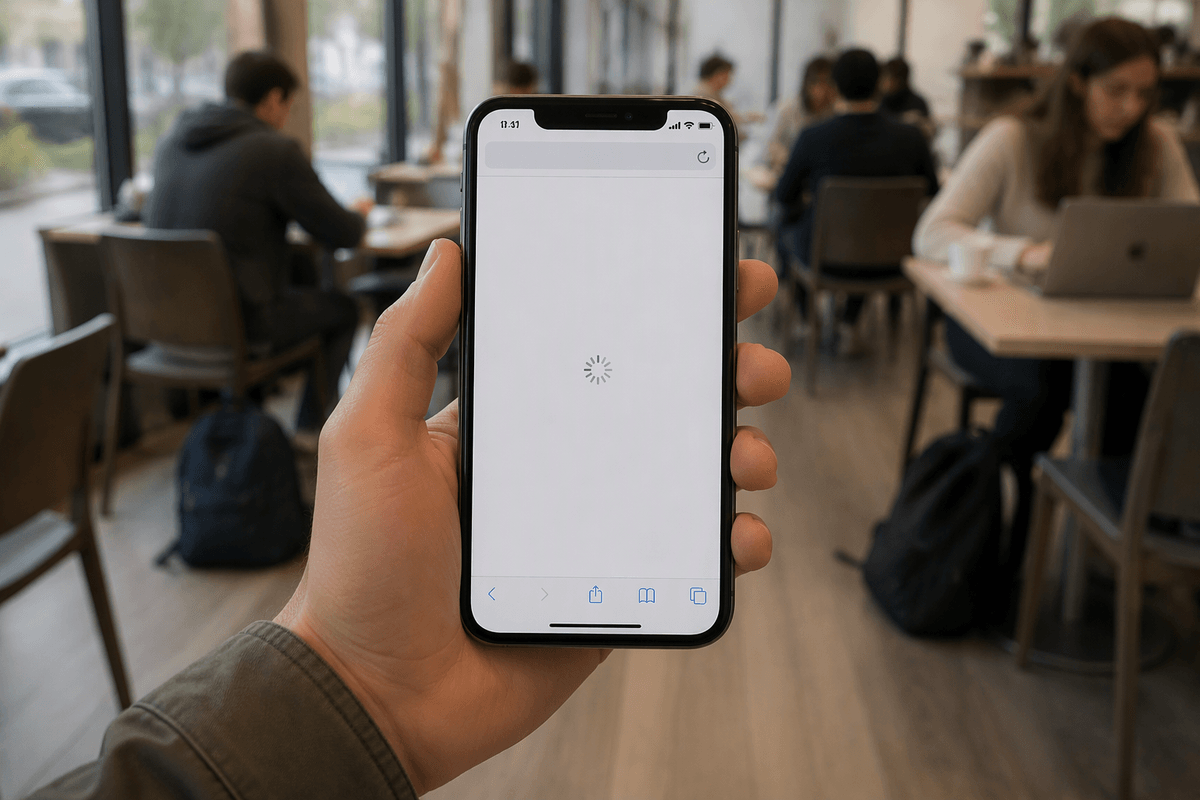
You’ve seen it: Wi‑Fi shows connected, the bars look fine, but nothing loads. On public or campus networks, assume you’re stuck behind a captive portal (the sign‑in/terms page). Turn Wi‑Fi off/on, then open Safari (not an in-app browser) and try a plain site like example.com to trigger the login page. If it still won’t appear, tap the network’s (i) and toggle Private Wi‑Fi Address off, then reconnect—some portals get confused by a changing address.
Also check for software updates on both ends. If your iPhone has a pending iOS update, install it when you can; Wi‑Fi bugs do get fixed. At home, router firmware matters too, but updating it can cause a brief outage and sometimes resets settings, so do it when you can afford downtime.
Knowing when it’s hardware, ISP trouble, or time for help
You’ll usually feel when you’ve crossed from “settings” into “something’s broken.” If multiple devices can’t get online, your router/modem is likely down or your ISP is having an outage—check the modem lights and your provider’s status page, then wait 10–15 minutes after a full power cycle before judging it. If only your iPhone fails on every Wi‑Fi network (including a friend’s hotspot), suspect iPhone-side hardware or a deeper software issue; back up and contact Apple Support. On school/work Wi‑Fi, a blocked device or certificate problem often requires IT—ask them to re‑authorize your device.