Why Google Meet gets stuck on “Getting ready”
You click a Meet link, allow the camera, and then it just sits on “Getting ready.” That screen is where your browser and Google’s servers negotiate a few basics: loading the Meet web app, confirming you’re signed in (and allowed to use Meet), checking camera/mic access, and opening secure real-time connections for audio and video. If any one of those steps stalls, Meet can’t finish the handshake and you stay in the loop.
The tricky part is the failure is often “silent.” A corrupted cookie, an extension that blocks scripts, a stuck browser session, or firewall that blocks WebRTC traffic can all look identical. Fixing it usually means narrowing down which layer is failing without changing ten things at once.
Fast checks before you change anything big
If you’re about to be late, aim for quick “is it this device or this setup?” checks. First, hard refresh the tab (Ctrl+Shift+R on Windows/ChromeOS, Cmd+Shift+R on Mac), then close the Meet tab and reopen the link. Confirm you’re signed into the right Google account; school/work accounts can have Meet features restricted by an admin.
Then isolate the browser session: open the same Meet link in an Incognito/Private window, or try a different browser (Chrome, Edge, Firefox). If it works there, your main browser profile likely has a bad cookie/cache entry or an extension conflict. Also toggle your network basics: turn off proxy if you use one, and try a phone hotspot once. That one test quickly separates “local browser issue” from “network blocks,” without risking bigger changes.
Browser issues: cache, cookies, updates, and bad sessions
You’ve already done the most useful isolation test: if Meet works in Incognito or another browser, your main browser profile is the problem. Start with the low-risk fixes. Make sure the browser is fully updated, then restart it completely (quit all windows, not just the tab). A “Getting ready” loop is often a stale or corrupted session cookie, especially if you recently changed your Google password or switched between personal and work accounts.
If a restart doesn’t help, clear site data just for Meet instead of wiping everything. In Chrome/Edge, open Settings and search for “site data,” then remove data for meet.google.com and accounts.google.com (you’ll need to sign back in). If Meet still hangs, clear cached images/files for the browser profile. The trade-off is time: you may be logged out of some sites and a few pages will load slower until the cache rebuilds, but it’s one of the most reliable ways to reset a “bad session” without changing your device.
Extensions and privacy tools that quietly break Meet
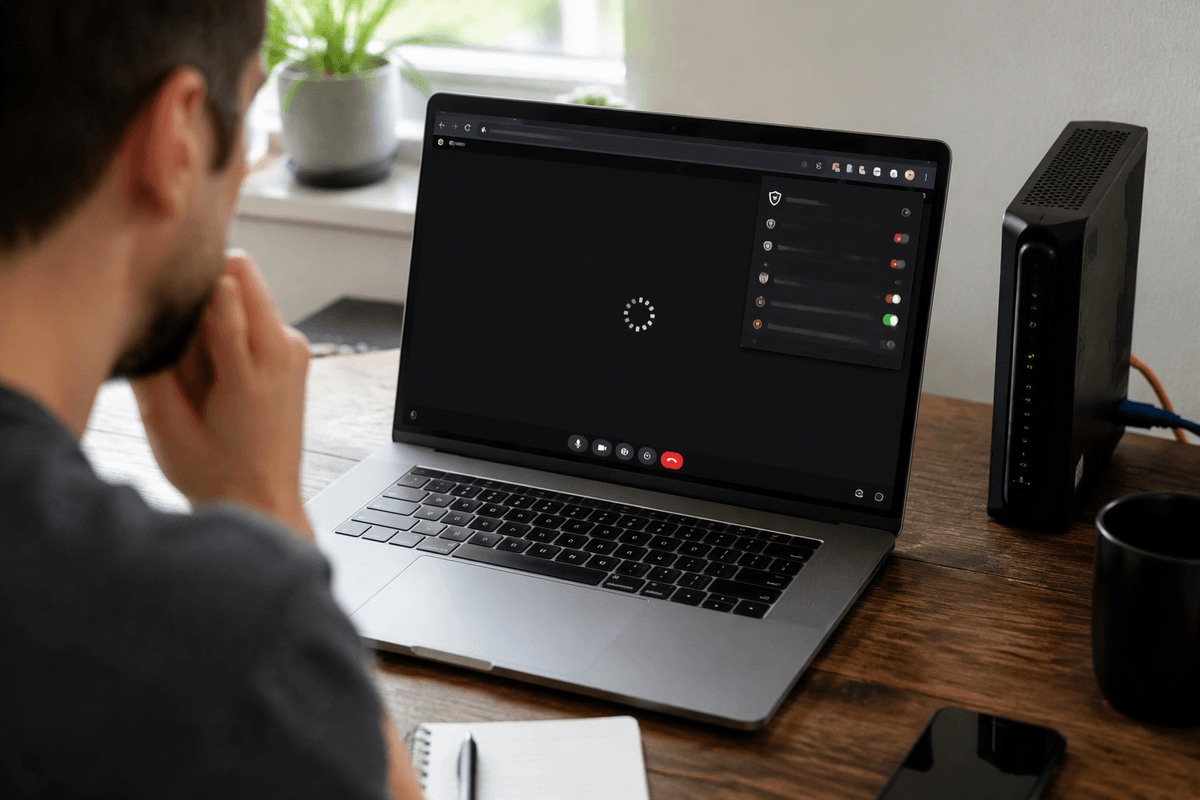
You’ll often see Meet work in Incognito but fail in your normal window because Incognito typically disables most extensions. Ad blockers, tracker blockers, script blockers, “privacy” toolbars, antivirus web shields, and corporate DLP extensions can prevent Meet from loading key scripts or opening the WebRTC connections it needs, leaving you stuck on “Getting ready” with no obvious error.
The fastest test is to temporarily disable extensions, then try Meet again. In Chrome/Edge, go to Extensions and switch them off, starting with anything that blocks ads/scripts, alters cookies, forces HTTPS, or filters network traffic. If that fixes it, re-enable them one by one until the problem returns, then add an allowlist for meet.google.com and accounts.google.com or remove the culprit. The practical downside: turning off a security or compliance extension may violate work policy, so if it’s managed, you may need IT to adjust it.
Camera and mic permissions: the loop’s most common trigger
You’ve probably seen the permission pop-up, clicked “Allow,” and still ended up stuck. Meet can hang on “Getting ready” when the browser thinks it can’t reliably access a camera or mic, or when the selected device disappears mid-load (common with USB headsets, docking stations, and Bluetooth audio). Start simple: unplug and replug the webcam/headset, then reload the Meet tab. If you use Bluetooth, disconnect and reconnect it, or switch to built-in mic/speakers just to get into the meeting.
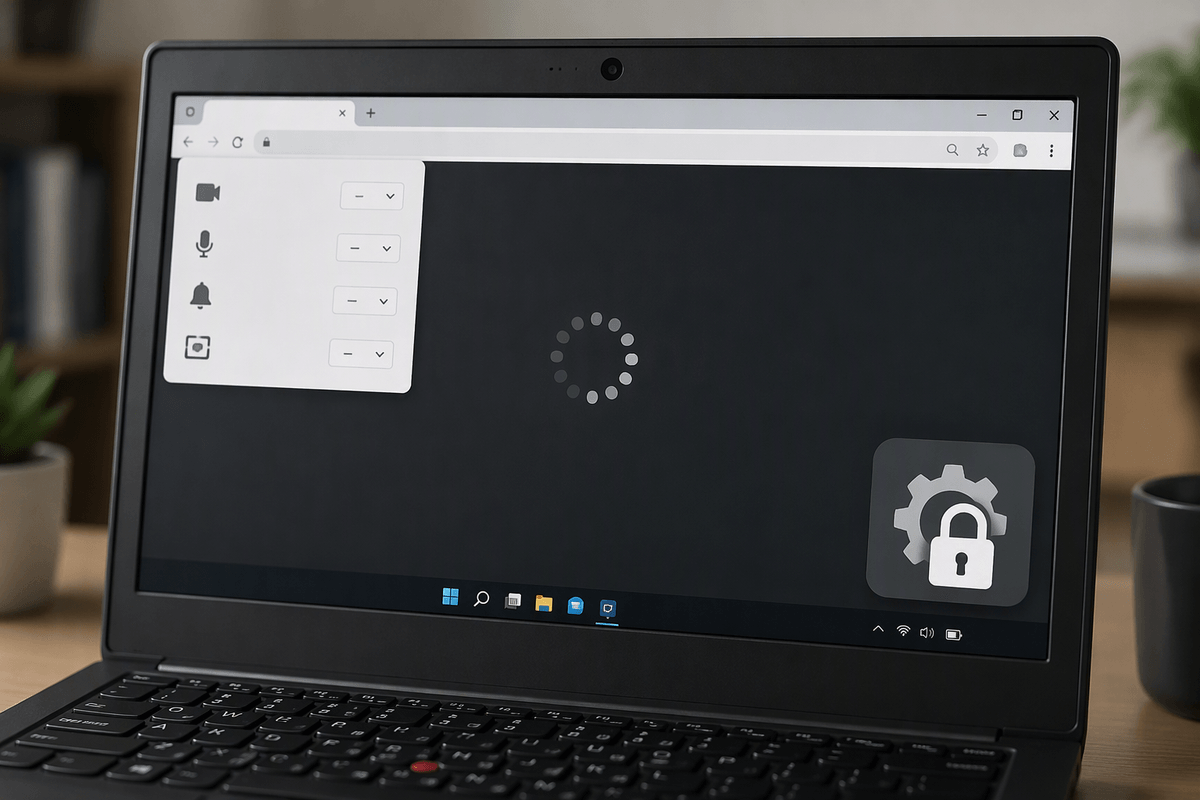
Then confirm permissions at the source. In the browser’s address bar, click the lock icon and make sure Camera and Microphone are set to Allow for meet.google.com. Inside the Meet pre-join screen, open Settings and verify the correct mic/camera are selected and showing activity. On Windows/macOS, also check system privacy settings—OS-level blocks override the browser. The cost is a minute or two of device switching, but it’s often the fastest “real” fix.
Network and firewall constraints: when Meet can’t connect fully
You can do everything “right” in the browser and still get stuck if the network won’t let Meet complete its real-time connection. This shows up most often on office, school, hospital, hotel, or guest Wi‑Fi networks, or anytime you’re routing through proxy, or “web filter.” A quick tell is when Meet loads the page but never finishes joining, or when it works instantly on a phone hotspot using the same laptop.
Start by turning off proxy and trying again, or switch to a different network for one test. If you’re on managed Wi‑Fi, “Getting ready” can mean WebRTC traffic is being blocked or tightly inspected, and Meet can’t negotiate media paths reliably. Captive portals are another common trap: open a new tab and visit a plain HTTP site to trigger the sign-in page, accept the terms, then reload Meet.
If you need to escalate, don’t just say “Meet is broken.” Tell IT the exact network name, whether a hotspot works, the time it failed, and whether it fails on multiple browsers and devices. That gives them enough to check firewall/proxy rules without a long back-and-forth.
When it’s not you: service outages and escalation steps
Sometimes everything on your side is fine and Meet is the part that’s struggling. If multiple people report the same “Getting ready” loop at the same time (especially across different networks), check the Google Workspace Status Dashboard for Google Meet and Google Account sign-in issues before you burn time resetting browsers. A short wait and retry can be the correct fix when there’s a partial outage, a regional disruption, or elevated error rates.
If it’s only happening to one user or one organization, escalate with specifics that shorten the ticket. Capture the exact Meet link, the time it failed (with time zone), your browser/version, OS, whether Incognito or another browser works, whether hotspot works, and any on-screen error text. If policy allows, grab a screenshot of the “Getting ready” screen and the browser site-permission panel. The practical constraint: on managed school/work devices, you may not be able to change extensions, firewalls, or account settings yourself, so IT/admin has to.
A reliable troubleshooting order you can reuse next time
When Meet stalls again, use the same order so you don’t change five variables at once. Reload with a hard refresh, then close the tab and reopen the link. Confirm you’re in the right Google account, then try Incognito/Private; if that works, disable extensions in your normal profile and clear site data for meet.google.com and accounts.google.com. If it still fails, re-check the lock-icon permissions, swap to a built-in mic/cam, and replug any USB/Bluetooth devices. Then test network: turn off proxy and try a hotspot once. If none of that helps, check the Workspace status page and escalate with time, browser/OS, and which tests passed.