Why butt dials still happen with modern phones
You pull your phone out and see a missed call you don’t remember making, or a half-written text you definitely didn’t type. That still happens because a “locked” phone isn’t always fully inert. The screen can wake from motion, pressure, or fabric contact, then the lock screen offers tappable areas—camera, flashlight, notification buttons, call-backs—that don’t require unlocking. Add sweaty workouts, tight jeans, a bag with shifting items, or a screen protector that’s extra sensitive, and the phone can register real touches. The trade-off is convenience: faster access also creates more chances for accidental input.
Lock it faster: auto-lock and real screen security
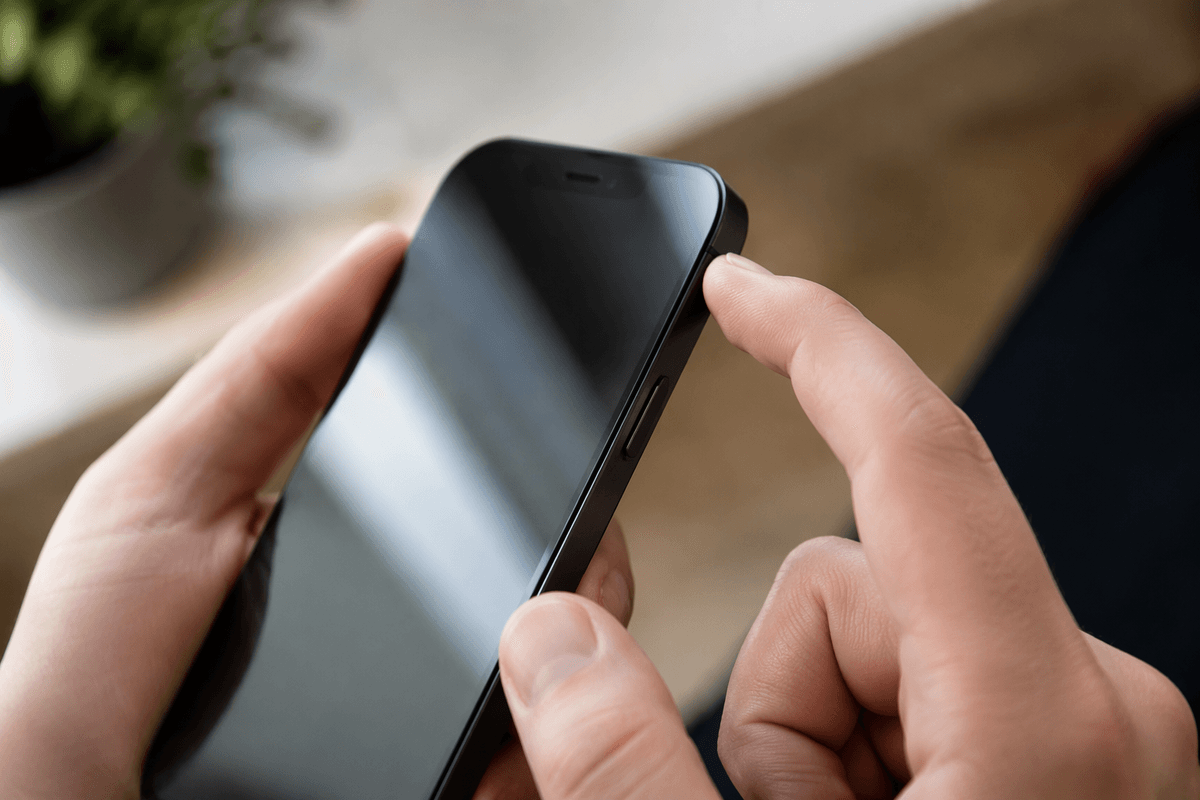
The easiest win is shortening how long your phone stays “awake” after you stop using it. Set Auto-Lock (or Screen Timeout) to 30 seconds or 1 minute, then get used to tapping the side/power button the moment you pocket it. If your phone is sitting unlocked while you walk from the couch to the car, you’ve already given your pocket a head start.
Make sure you’re using a real lock method, not just swipe-to-unlock. A PIN (6 digits if you can tolerate it) or a strong passcode means the screen can wake, but it can’t actually open the dialer or send a message without you. Face/Touch unlock is fine for convenience, but keep the fallback passcode on—turning security off entirely is what makes accidental actions easy. The only cost is a slightly slower unlock, especially when you’re wearing gloves or your face ID fails.
Stop the screen from waking up in your pocket
You know the moment: you slide the phone into a pocket, take a few steps, and the screen is somehow on again. That usually comes from “wake” features meant to feel instant—Raise to Wake, Tap to Wake, Double-tap to wake, Lift to check, or motion-to-wake on some Android phones. If butt dials are a regular problem, turn those off first. On iPhone, try disabling Raise to Wake (and Tap to Wake if needed). On Android, look for Lift to check phone, Tap to check phone, Wake screen for notifications, or similar options in Display/Lock screen settings.
Then make the physical setup less touchy. Tight pockets and soft fabric can press the screen; carry the phone screen-in toward your leg, not outward. If you use a very sensitive screen protector, consider swapping it—some make phantom taps more likely, especially when the phone is warm or damp.
Tame the lock screen: shortcuts, widgets, and quick actions
If your screen still wakes sometimes, the lock screen itself becomes the “control panel” your pocket can hit. Start by removing fast actions you don’t truly use: lock-screen widgets, swipe-left news panels, and especially one-tap shortcuts like Camera, Flashlight, Wallet/Pay, and smart-home controls. Each one is designed to work without a full unlock, which is great at a bus stop and terrible in tight jeans.
Then tame notifications. Turn off “tap to reply,” “call back,” and other interactive notification buttons on the lock screen where your phone allows it. If you get lots of missed-call alerts, disable “return missed call” actions on the lock screen and require an unlock to open the Phone app. The trade-off is you’ll take an extra second to do quick tasks, but you’ll stop paying the bigger cost—accidental calls, random photos, and apps opening in your pocket.
Emergency and calling features that misfire under pressure
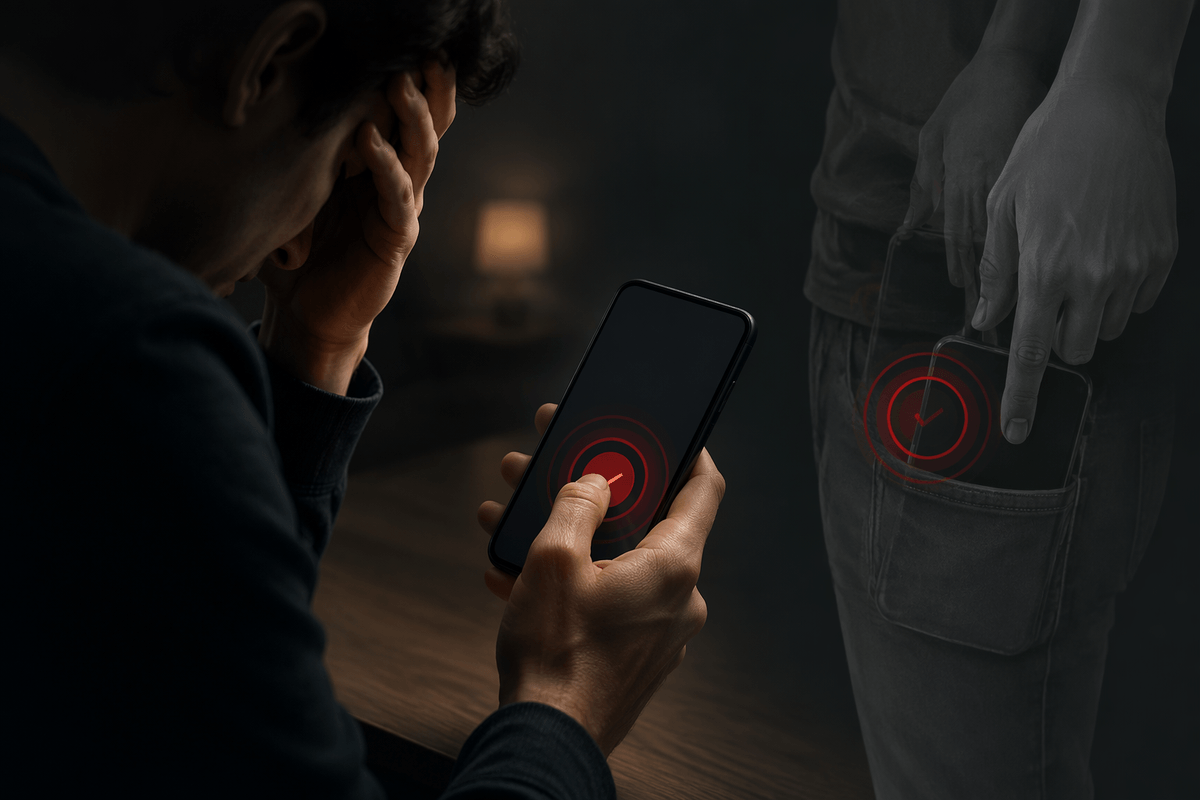
The most common “how did this happen?” calls come from emergency and phone features that are designed to work fast, even when you’re stressed. Both iPhone and Android offer Emergency SOS options that can be triggered by repeated side-button presses or a long press-and-hold. If your phone rides in a tight pocket, that pressure can mimic a button sequence, and you end up calling emergency services or blasting alerts to your emergency contacts. Go into your Emergency SOS/Safety settings and turn off “call with 5 presses,” “hold to call,” or any shortcut you don’t truly need, or switch it to require an on-screen confirmation.
Also check your lock-screen calling access. Disable “return missed call” actions from notifications, and on Android consider turning off “Power button ends call” so a pocket squeeze doesn’t hang up or redial. The limitation is real: making emergency calling harder can slow you down in a genuine crisis, so keep at least one method you can reliably trigger on purpose.
Voice assistants and hands-free calling: helpful, but risky
You don’t have to be on the Phone app to place a call anymore. Voice assistants can do it from the lock screen, and Bluetooth headsets or car systems can start “hands-free” dialing with a long-press or double-tap. In a pocket, that can happen from pressure on a headset button, a smartwatch tap, or a hot-mic “Hey Siri/Hey Google” that mishears a conversation, a podcast, or a loud room and decides you said “call.”
If accidental calls keep happening, tighten these triggers. Turn off voice wake (“Hey Siri”/“Hey Google”) or require unlock for assistant actions and calling. Disable “Allow calls when locked” where available, and review Bluetooth accessories: change button mappings, turn off auto-answer, or disconnect the device when you pocket your phone. The cost is less hands-free convenience, especially while driving or carrying groceries.
Pocket-proof habits and gear that quietly solve it
You can fix a lot with settings, but carry habits do the quiet cleanup. Put the phone in screen-in toward your leg, and avoid the same pocket as keys, coins, or an ID badge that can press and swipe. If you carry it in a bag, use a dedicated pocket so it isn’t getting “tapped” by a water bottle or shifting items. When you sit, don’t let the waistband or thigh seam pin the power button—some pockets hit that spot perfectly.
Gear helps when your day is rough on phones. A slightly stiffer case with a raised lip reduces fabric touches, and a belt holster, crossbody pouch, or lanyard keeps pressure off the screen and buttons. The trade-off is bulk and a little less convenience, but it’s often the only reliable fix for tight work pants, gym shorts, and crowded bags.
A quick 60-second checklist to end butt dials for good
Do this once and you’ll usually be done: set Auto-Lock/Screen Timeout to 30 seconds (or 1 minute), then press the side/power button every time before you pocket it. Turn off Raise/Lift to Wake and Tap/Double-tap to Wake. Remove lock-screen shortcuts/widgets you don’t use and disable interactive lock-screen actions like “call back” or “reply.” In Safety/Emergency settings, turn off any SOS button sequence that can trigger from pocket pressure. Require unlock for voice-assistant calling (or disable the wake phrase). Carry screen-in, in a dedicated pocket, and keep keys/coins out.